> ## Documentation Index
> Fetch the complete documentation index at: https://docs.orq.ai/llms.txt
> Use this file to discover all available pages before exploring further.
# API Keys and Management Keys
> Create and manage project-scoped API keys and workspace-scoped management keys in Orq.ai with granular permissions for users and service accounts.
## API Keys
### What are API Keys
API Keys are secure tokens used to authenticate requests to **Orq.ai**. Each key is scoped to a single project and carries a set of permissions that control what it can do.
Two key types are available, chosen by the key's owner.
#### User keys
Tied to a specific user account and project. Automatically revoked if the user is removed from the organization or project. Use user keys for personal use and local development.
#### Service account keys
Not tied to any individual user, with a lifecycle independent of user membership. Only workspace admins can create service account keys. Use service account keys for production systems, so access does not break when a team member leaves.
### Viewing API Keys
Navigate to **Settings > API Keys** to see all keys across projects.
The table shows the following columns:
| Column | Description |
| - | - |
| **Created** | Date the key was created |
| **Name** | Key label |
| **Type** | `User` or `Service` |
| **Status** | `Active`, `Disabled`, or `Revoked` |
| **Permissions** | `All`, `Read only`, or `Restricted` |
| **Created by** | User who created the key |
Use the menu to filter by Type or Permissions.
### Creating an API Key
Navigate to **Settings > API Keys** and select Create API key.
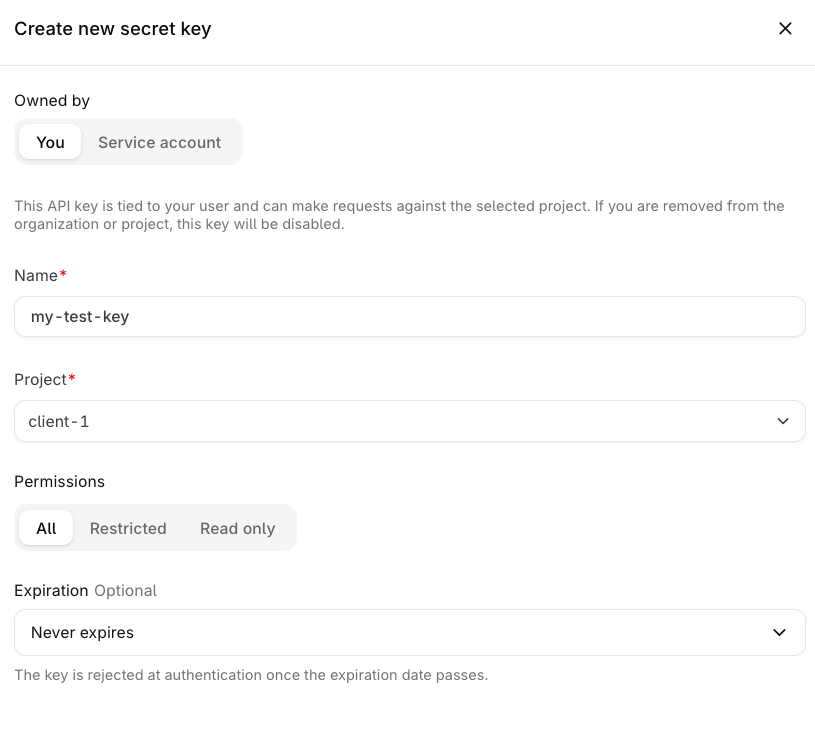 Select You to create a User key, or Service account to create a key not tied to any individual user.
Enter a **Name** for the key and select the [**Project**](/ai-studio/get-started/projects) it will have access to.
Choose a permission preset. See [Permissions](#permissions) below.
Set an **Expiration** date if the key should automatically become inactive after a certain date.
Select Create API key. A **Save your key** dialog appears showing the token and its permissions summary.
Select You to create a User key, or Service account to create a key not tied to any individual user.
Enter a **Name** for the key and select the [**Project**](/ai-studio/get-started/projects) it will have access to.
Choose a permission preset. See [Permissions](#permissions) below.
Set an **Expiration** date if the key should automatically become inactive after a certain date.
Select Create API key. A **Save your key** dialog appears showing the token and its permissions summary.
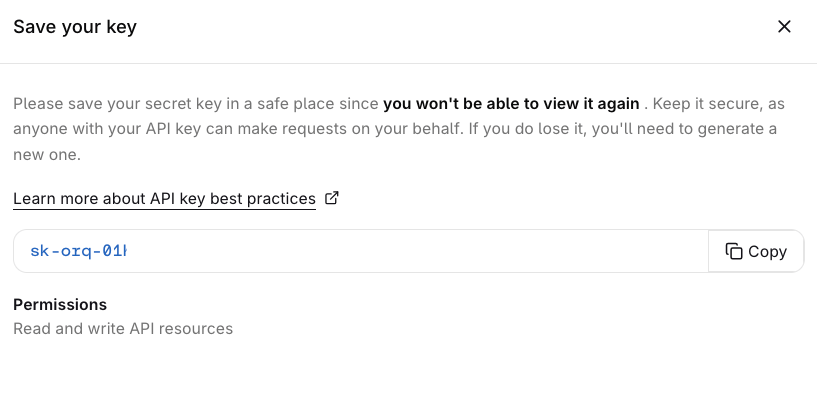 Click Copy to copy the token.
The token is only shown once. Store it securely before closing this dialog. It cannot be retrieved afterwards.
To cap a key's **cost**, **token**, or **requests-per-minute** usage, attach a [Budget](/ai-gateway/budgets) to it. Budget limits reset on the configured period. See [Rate limits & quotas](/ai-gateway/features/rate-limits) for what the gateway enforces at each layer.
### Permissions
| Preset | Description |
| - | - |
| **All** | Read and write access to all API resources |
| **Read only** | Read access to all API resources |
| **Restricted** | Custom per-resource access |
With **Restricted**, set the permission for each resource individually: **None**, **Read**, or **Write**.
**Write** permission automatically includes **Read** where Read is available for the endpoint.
| Resource | None | Read | Write |
| - | :-: | :-: | :-: |
| Agent schedules | ✓ | ✓ | ✓ |
| Agents | ✓ | ✓ | ✓ |
| Annotations | ✓ | ✓ | ✓ |
| Chunking | ✓ | ✓ | ✓ |
| Datasets | ✓ | ✓ | ✓ |
| Deployments | ✓ | ✓ | ✓ |
| Evaluators | ✓ | ✓ | ✓ |
| Feedback | ✓ | ✓ | ✓ |
| Files | ✓ | ✓ | ✓ |
| Guardrail rules | ✓ | ✓ | ✓ |
| Human evaluations | ✓ | ✓ | ✓ |
| Identities | ✓ | ✓ | ✓ |
| Knowledge bases | ✓ | ✓ | ✓ |
| Memory stores | ✓ | ✓ | ✓ |
| Policies | ✓ | ✓ | ✓ |
| Projects | ✓ | ✓ | ✓ |
| Prompts | ✓ | ✓ | ✓ |
| Reporting | ✓ | ✓ | |
| Routing rules | ✓ | ✓ | ✓ |
| Skills | ✓ | ✓ | ✓ |
| Tools | ✓ | ✓ | ✓ |
| **Gateway** | | | |
| Chat completions | ✓ | | ✓ |
| Embeddings | ✓ | | ✓ |
| Images | ✓ | | ✓ |
| Models | ✓ | ✓ | |
| Moderations | ✓ | | ✓ |
| OCR | ✓ | | ✓ |
| Rerank | ✓ | | ✓ |
| Responses | ✓ | ✓ | ✓ |
| Speech | ✓ | | ✓ |
| Transcriptions | ✓ | | ✓ |
### Managing Keys
Click Copy to copy the token.
The token is only shown once. Store it securely before closing this dialog. It cannot be retrieved afterwards.
To cap a key's **cost**, **token**, or **requests-per-minute** usage, attach a [Budget](/ai-gateway/budgets) to it. Budget limits reset on the configured period. See [Rate limits & quotas](/ai-gateway/features/rate-limits) for what the gateway enforces at each layer.
### Permissions
| Preset | Description |
| - | - |
| **All** | Read and write access to all API resources |
| **Read only** | Read access to all API resources |
| **Restricted** | Custom per-resource access |
With **Restricted**, set the permission for each resource individually: **None**, **Read**, or **Write**.
**Write** permission automatically includes **Read** where Read is available for the endpoint.
| Resource | None | Read | Write |
| - | :-: | :-: | :-: |
| Agent schedules | ✓ | ✓ | ✓ |
| Agents | ✓ | ✓ | ✓ |
| Annotations | ✓ | ✓ | ✓ |
| Chunking | ✓ | ✓ | ✓ |
| Datasets | ✓ | ✓ | ✓ |
| Deployments | ✓ | ✓ | ✓ |
| Evaluators | ✓ | ✓ | ✓ |
| Feedback | ✓ | ✓ | ✓ |
| Files | ✓ | ✓ | ✓ |
| Guardrail rules | ✓ | ✓ | ✓ |
| Human evaluations | ✓ | ✓ | ✓ |
| Identities | ✓ | ✓ | ✓ |
| Knowledge bases | ✓ | ✓ | ✓ |
| Memory stores | ✓ | ✓ | ✓ |
| Policies | ✓ | ✓ | ✓ |
| Projects | ✓ | ✓ | ✓ |
| Prompts | ✓ | ✓ | ✓ |
| Reporting | ✓ | ✓ | |
| Routing rules | ✓ | ✓ | ✓ |
| Skills | ✓ | ✓ | ✓ |
| Tools | ✓ | ✓ | ✓ |
| **Gateway** | | | |
| Chat completions | ✓ | | ✓ |
| Embeddings | ✓ | | ✓ |
| Images | ✓ | | ✓ |
| Models | ✓ | ✓ | |
| Moderations | ✓ | | ✓ |
| OCR | ✓ | | ✓ |
| Rerank | ✓ | | ✓ |
| Responses | ✓ | ✓ | ✓ |
| Speech | ✓ | | ✓ |
| Transcriptions | ✓ | | ✓ |
### Managing Keys
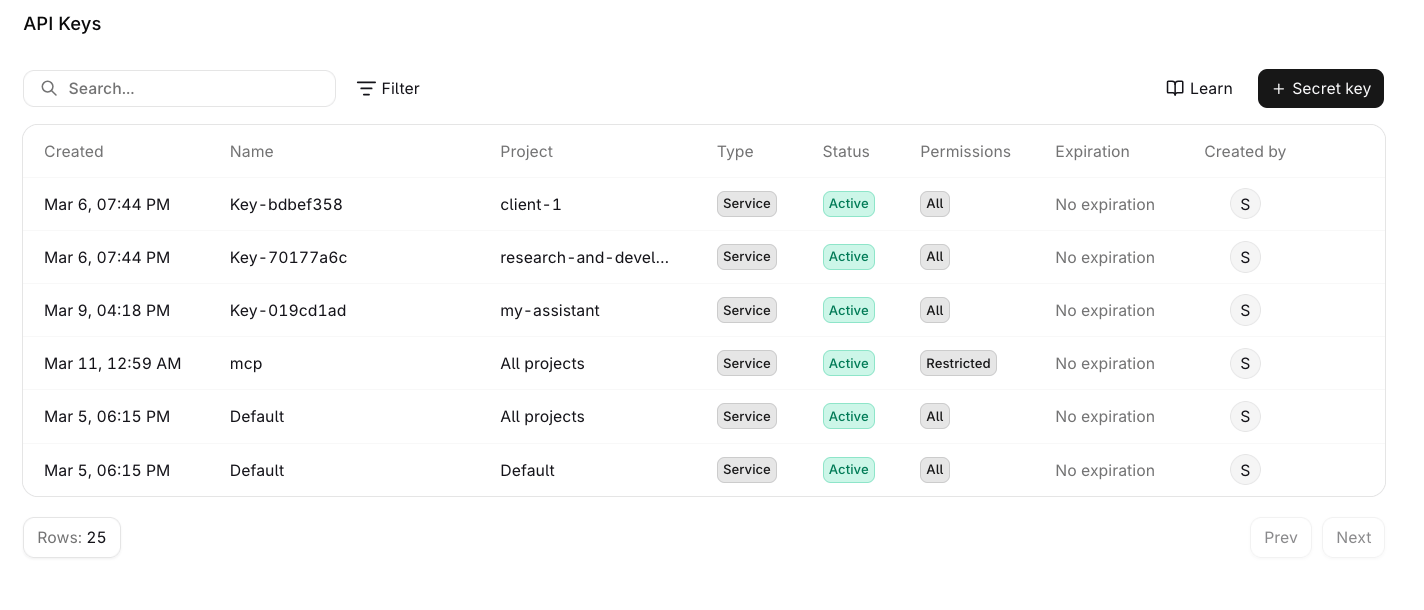 Select the menu on any key to access the following actions:
* Edit: update the name, permissions, or expiration date. The owner type cannot be changed after creation.
* Duplicate: opens the creation panel pre-filled with the key's current settings.
* Delete: permanently removes the key. This cannot be undone.
A **Revoked** status means the key belonged to a user who was removed from the organization or project, or it has been revoked manually. Revocation is permanent.
## Management Keys
### Overview
Management Keys are only available to workspace admins. The **Management Keys** page is not visible to non-admin members.
**Management Keys** are workspace-scoped tokens for authenticating workspace administration operations. They can manage **API keys**, **Budgets**, **Projects**, **Smart Routers**, **Evaluators**, **Workspace models**, and **Workspace Settings**.
Management Keys cannot be used to query models or agents. Use a standard [API Key](/ai-studio/organization/api-keys) for inference and product endpoints.
#### Use cases
* Automating workspace provisioning via the API.
* Delegating API key rotation to a deployment pipeline without granting full admin access.
* Letting a billing automation script read and update Budgets without exposing API key management.
#### Workspace administration endpoints
Standard API keys are project-scoped. Use a Management Key for these workspace administration endpoints:
| Endpoint family | Management Key access |
| - | - |
| `/v2/api-keys*` | List, retrieve, create, update, and delete API keys. `/v2/api-keys/capabilities` is public. |
| `/v2/budgets*` | List, retrieve, create, update, reset, and delete Budgets. |
| `/v2/projects*` | Manage Projects across the workspace. A project-scoped API key can only list or retrieve its selected Project. |
| `/v2/smart-routers*` | List, retrieve, create, update, enable, disable, and delete Smart Routers. |
Notifiers are intentionally not listed here: their routes are project-scoped and do not require a Management Key. Project-scoped API keys can access the Notifiers API for their selected project.
### View Management Keys
Navigate to **Settings** → **Organization** → **Management Keys** to view all keys in the workspace.
Select the menu on any key to access the following actions:
* Edit: update the name, permissions, or expiration date. The owner type cannot be changed after creation.
* Duplicate: opens the creation panel pre-filled with the key's current settings.
* Delete: permanently removes the key. This cannot be undone.
A **Revoked** status means the key belonged to a user who was removed from the organization or project, or it has been revoked manually. Revocation is permanent.
## Management Keys
### Overview
Management Keys are only available to workspace admins. The **Management Keys** page is not visible to non-admin members.
**Management Keys** are workspace-scoped tokens for authenticating workspace administration operations. They can manage **API keys**, **Budgets**, **Projects**, **Smart Routers**, **Evaluators**, **Workspace models**, and **Workspace Settings**.
Management Keys cannot be used to query models or agents. Use a standard [API Key](/ai-studio/organization/api-keys) for inference and product endpoints.
#### Use cases
* Automating workspace provisioning via the API.
* Delegating API key rotation to a deployment pipeline without granting full admin access.
* Letting a billing automation script read and update Budgets without exposing API key management.
#### Workspace administration endpoints
Standard API keys are project-scoped. Use a Management Key for these workspace administration endpoints:
| Endpoint family | Management Key access |
| - | - |
| `/v2/api-keys*` | List, retrieve, create, update, and delete API keys. `/v2/api-keys/capabilities` is public. |
| `/v2/budgets*` | List, retrieve, create, update, reset, and delete Budgets. |
| `/v2/projects*` | Manage Projects across the workspace. A project-scoped API key can only list or retrieve its selected Project. |
| `/v2/smart-routers*` | List, retrieve, create, update, enable, disable, and delete Smart Routers. |
Notifiers are intentionally not listed here: their routes are project-scoped and do not require a Management Key. Project-scoped API keys can access the Notifiers API for their selected project.
### View Management Keys
Navigate to **Settings** → **Organization** → **Management Keys** to view all keys in the workspace.
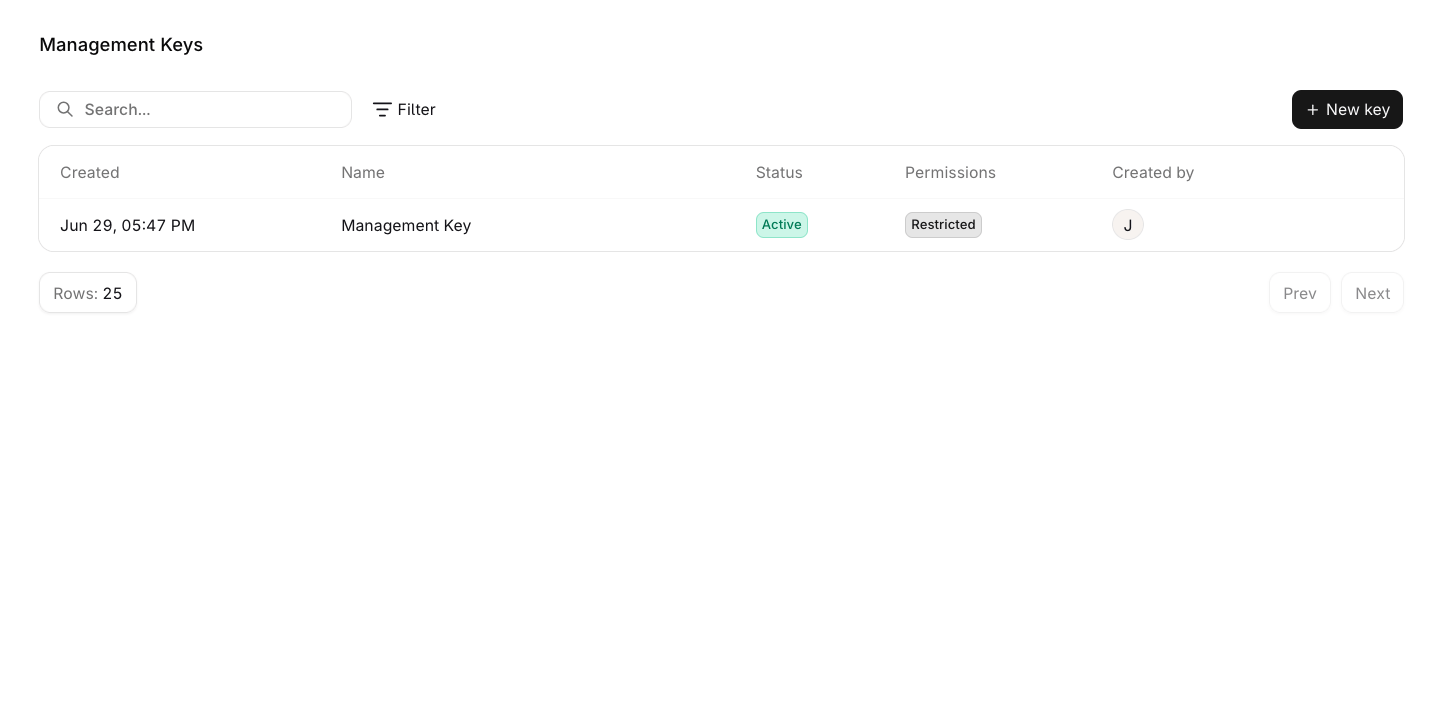 Click any row to open the edit panel and update the key's name, permissions, or expiration date. Hover a row and click for additional options:
* Edit: open the edit panel to update the key's name, permissions, or expiration date.
* Duplicate: create a new key with the same permissions.
* Delete: permanently remove the key from the workspace.
### Create a Management Key
Navigate to **Settings** → **Organization** → **Management Keys** and click New key.
Click any row to open the edit panel and update the key's name, permissions, or expiration date. Hover a row and click for additional options:
* Edit: open the edit panel to update the key's name, permissions, or expiration date.
* Duplicate: create a new key with the same permissions.
* Delete: permanently remove the key from the workspace.
### Create a Management Key
Navigate to **Settings** → **Organization** → **Management Keys** and click New key.
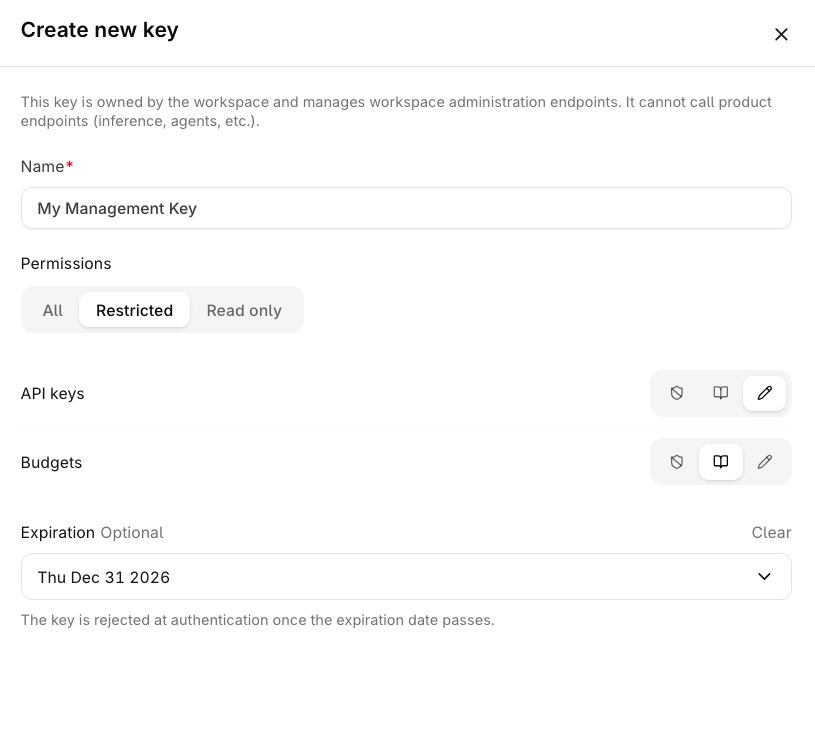 Enter a **Name** for the key (required, max 128 characters).
Select a **Permissions** mode, default is All. See [Permission modes](#permission-modes) below.
Set an **Expiration** date if the key should stop authenticating after a certain date.
Click Create key. A **Save your key** panel appears showing the token.
The token is only shown once. Store it securely before closing this panel. It cannot be retrieved afterwards.
#### Permission modes
| Mode | Description |
| - | - |
| **All** | Full read and write access to all capabilities. |
| **Restricted** | Configure access per capability. Each capability can be set to None, Read, or Write independently. |
| **Read only** | Read access to all capabilities. |
#### Capabilities
| Capability | None | Read | Write |
| - | - | - | - |
| **API keys** | No access. | List and view workspace **API keys**. | List, view, create, update, revoke, and delete workspace **API keys**. |
| **Budgets** | No access. | List and view workspace **Budgets**. | List, view, create, update, reset, and delete workspace **Budgets**. |
| **Projects** | No access. | List and view workspace **Projects**. | List, view, create, update, and delete workspace **Projects**. |
| **Smart Routers** | No access. | List and view workspace **Smart Routers**. | List, view, create, update, enable, disable, and delete workspace **Smart Routers**. |
| **Evaluators** | No access. | List and view workspace **Evaluators**. | List, view, create, update, and delete workspace **Evaluators**. |
| **Workspace models** | No access. | No list or view endpoints exist for workspace **models**; read access alone performs no API operations. | Enable and disable workspace **models** and manage their sharing. |
| **Workspace Settings** | No access. | View workspace settings. | View and update workspace settings. |
Management Keys are not available through MCP. Use the REST API to manage keys programmatically.
## Manage keys programmatically
Create, update, revoke, and delete API Keys and [Management Keys](/ai-studio/organization/management-keys) with the API instead of the console. The full endpoint reference is on the [API Keys reference](/reference/api-keys/create-a-new-api-key) and [Management Keys reference](/reference/management-keys/create-a-new-management-key) pages.
### Authenticating with a Management Key
Key management requests authenticate with a [**Management Key**](/ai-studio/organization/management-keys), never an API key. **API Keys** are project-scoped inference credentials and cannot administer keys.
* Pass a **Management Key** as the bearer token, or as the SDK API key.
* A **Management Key** with the `api-key` write grant can list, create, update, revoke, and delete **API Keys**.
* Managing **Management Keys** requires the `management-key` grant, which is not part of the **All** or **Read only** presets. Grant it explicitly to a **Management Key** that must administer other Management Keys.
The SDK exposes these operations as `api_keys` / `apiKeys` and `management_keys` / `managementKeys`: [API Keys SDK](/reference/sdk/apikeys), [Management Keys SDK](/reference/sdk/managementkeys).
### Key lifecycle in code
These examples use a **Management Key** as `ORQ_API_KEY`.
| Operation | Endpoint | Notes |
| - | - | - |
| Create | `POST /v2/api-keys` | `name` is required; scope, permissions, and expiration are optional. An omitted `permission_mode` defaults to `all`, which grants read and write access to every capability |
| Disable | `PATCH /v2/api-keys/{api_key_id}` | Set `status` to `disabled`; reversible |
| Revoke | `PATCH /v2/api-keys/{api_key_id}` | Set `status` to `revoked`; permanent |
| Delete | `DELETE /v2/api-keys/{api_key_id}` | Permanently removes the key |
| List | `GET /v2/api-keys` | Paginated; never returns the secret |
| Retrieve | `GET /v2/api-keys/{api_key_id}` | Never returns the secret |
Create a project-scoped key with restricted permissions:
```bash cURL theme={"theme":{"light":"github-light","dark":"github-dark"}}
curl -X POST https://my.orq.ai/v2/api-keys \
-H "Authorization: Bearer $ORQ_API_KEY" \
-H "Content-Type: application/json" \
-d '{
"name": "Support automation key",
"project_scope": {
"mode": "single",
"project_id": "proj_01HZXW2K7Y8Q9M0N1P2R3S4T5V"
},
"permission_mode": "restricted",
"access": {
"agent": "write",
"deployment": "read"
}
}'
```
```typescript TypeScript theme={"theme":{"light":"github-light","dark":"github-dark"}}
import { Orq } from "@orq-ai/node";
const client = new Orq({
apiKey: process.env.ORQ_API_KEY,
});
const result = await client.apiKeys.create({
name: "Support automation key",
projectScope: {
mode: "single",
projectId: "proj_01HZXW2K7Y8Q9M0N1P2R3S4T5V",
},
permissionMode: "restricted",
access: {
agent: "write",
deployment: "read",
},
});
console.log(result.id);
console.log(result.token);
```
```python Python theme={"theme":{"light":"github-light","dark":"github-dark"}}
import os
from orq_ai_sdk import Orq
client = Orq(api_key=os.environ["ORQ_API_KEY"])
result = client.api_keys.create(
name="Support automation key",
project_scope={
"mode": "single",
"project_id": "proj_01HZXW2K7Y8Q9M0N1P2R3S4T5V",
},
permission_mode="restricted",
access={
"agent": "write",
"deployment": "read",
},
)
print(result.id)
print(result.token)
```
Disable, revoke, or delete an existing key:
```bash cURL theme={"theme":{"light":"github-light","dark":"github-dark"}}
# Disable (reversible)
curl -X PATCH https://my.orq.ai/v2/api-keys/01HZXW2K7Y8Q9M0N1P2R3S4T5V \
-H "Authorization: Bearer $ORQ_API_KEY" \
-H "Content-Type: application/json" \
-d '{"status": "disabled"}'
# Revoke (permanent)
curl -X PATCH https://my.orq.ai/v2/api-keys/01HZXW2K7Y8Q9M0N1P2R3S4T5V \
-H "Authorization: Bearer $ORQ_API_KEY" \
-H "Content-Type: application/json" \
-d '{"status": "revoked"}'
# Delete
curl -X DELETE https://my.orq.ai/v2/api-keys/01HZXW2K7Y8Q9M0N1P2R3S4T5V \
-H "Authorization: Bearer $ORQ_API_KEY"
```
```typescript TypeScript theme={"theme":{"light":"github-light","dark":"github-dark"}}
// Disable (reversible)
await client.apiKeys.update({
apiKeyId: "01HZXW2K7Y8Q9M0N1P2R3S4T5V",
updateApiKeyRequest: { status: "disabled" },
});
// Revoke (permanent)
await client.apiKeys.update({
apiKeyId: "01HZXW2K7Y8Q9M0N1P2R3S4T5V",
updateApiKeyRequest: { status: "revoked" },
});
// Delete
await client.apiKeys.delete({ apiKeyId: "01HZXW2K7Y8Q9M0N1P2R3S4T5V" });
```
```python Python theme={"theme":{"light":"github-light","dark":"github-dark"}}
# Disable (reversible)
client.api_keys.update(
api_key_id="01HZXW2K7Y8Q9M0N1P2R3S4T5V",
status="disabled",
)
# Revoke (permanent)
client.api_keys.update(
api_key_id="01HZXW2K7Y8Q9M0N1P2R3S4T5V",
status="revoked",
)
# Delete
client.api_keys.delete(api_key_id="01HZXW2K7Y8Q9M0N1P2R3S4T5V")
```
To rotate a key, create a replacement key with the same configuration, then revoke the old one. Rotation is create followed by revoke; there is no dedicated rotate endpoint.
### Permission model
`permission_mode` selects the preset:
| Mode | Description |
| - | - |
| `all` | Read and write access to all domains in the API key capability catalog |
| `read_only` | Read access to all domains in the API key capability catalog |
| `restricted` | Per-domain access via the `access` map |
With `restricted`, the `access` map assigns a level to each domain. Write includes read:
| Level | Access |
| - | - |
| `none` | No access |
| `read` | Read access |
| `write` | Read and write access |
The capability catalog lists the domains a key can be granted: `GET /v2/api-keys/capabilities` returns each domain with its id, display name, group, and read / write availability. Use the catalog to discover grantable domains at runtime instead of hard-coding the list.
### The secret is returned once
The create response returns the raw token exactly once, in the `sk-orq--` format. Store it immediately: the API stores only a displayable `token_prefix` and a hash of the secret, so list and retrieve responses never include the token.
The token is only returned in the create response. Store it securely and treat it like a password; it cannot be retrieved afterwards.
For how every other kind of secret is stored, read, and rotated, see [Secrets management](/ai-studio/organization/secrets).
### Cost, token, and rate limits
Keys do not carry limit fields. Attach cost, token, and requests-per-minute limits with a [Budget](/ai-gateway/budgets) scoped to the key.
**Budgets** are workspace resources and require a [**Management Key**](/ai-studio/organization/management-keys); regular **API Keys** cannot manage them.
### Example: provision a per-customer key with a spend cap
Create a key scoped to the customer's project, then attach a monthly spend cap as a Budget scoped to that key:
```bash cURL theme={"theme":{"light":"github-light","dark":"github-dark"}}
# Create the customer key; capture the key id and token from the response
curl -X POST https://my.orq.ai/v2/api-keys \
-H "Authorization: Bearer $ORQ_API_KEY" \
-H "Content-Type: application/json" \
-d '{
"name": "Customer Acme key",
"project_scope": {
"mode": "single",
"project_id": "proj_01HZXW2K7Y8Q9M0N1P2R3S4T5V"
},
"permission_mode": "restricted",
"access": {
"agent": "write"
}
}'
# Cap cost, tokens, and rate with a Budget scoped to the key
curl -X POST https://my.orq.ai/v2/budgets \
-H "Authorization: Bearer $ORQ_API_KEY" \
-H "Content-Type: application/json" \
-d '{
"scope": { "api_key": { "api_key_id": "" } },
"limits": {
"period": "BUDGET_PERIOD_MONTHLY",
"amount": 100,
"token_limit": 1000000
},
"rate_limit": { "requests_per_minute": 60 }
}'
```
```typescript TypeScript theme={"theme":{"light":"github-light","dark":"github-dark"}}
const key = await client.apiKeys.create({
name: "Customer Acme key",
projectScope: {
mode: "single",
projectId: "proj_01HZXW2K7Y8Q9M0N1P2R3S4T5V",
},
permissionMode: "restricted",
access: {
agent: "write",
},
});
console.log(key.token);
await client.budgets.create({
scope: { apiKey: { apiKeyId: key.id } },
limits: {
period: "BUDGET_PERIOD_MONTHLY",
amount: 100,
tokenLimit: 1000000,
},
rateLimit: { requestsPerMinute: 60 },
});
```
```python Python theme={"theme":{"light":"github-light","dark":"github-dark"}}
key = client.api_keys.create(
name="Customer Acme key",
project_scope={
"mode": "single",
"project_id": "proj_01HZXW2K7Y8Q9M0N1P2R3S4T5V",
},
permission_mode="restricted",
access={
"agent": "write",
},
)
print(key.token)
client.budgets.create(
scope={"api_key": {"api_key_id": key.id}},
limits={
"period": "BUDGET_PERIOD_MONTHLY",
"amount": 100,
"token_limit": 1000000,
},
rate_limit={"requests_per_minute": 60},
)
```
This documentation is built and hosted on [Mintlify](https://mintlify.com), a developer documentation platform.
Enter a **Name** for the key (required, max 128 characters).
Select a **Permissions** mode, default is All. See [Permission modes](#permission-modes) below.
Set an **Expiration** date if the key should stop authenticating after a certain date.
Click Create key. A **Save your key** panel appears showing the token.
The token is only shown once. Store it securely before closing this panel. It cannot be retrieved afterwards.
#### Permission modes
| Mode | Description |
| - | - |
| **All** | Full read and write access to all capabilities. |
| **Restricted** | Configure access per capability. Each capability can be set to None, Read, or Write independently. |
| **Read only** | Read access to all capabilities. |
#### Capabilities
| Capability | None | Read | Write |
| - | - | - | - |
| **API keys** | No access. | List and view workspace **API keys**. | List, view, create, update, revoke, and delete workspace **API keys**. |
| **Budgets** | No access. | List and view workspace **Budgets**. | List, view, create, update, reset, and delete workspace **Budgets**. |
| **Projects** | No access. | List and view workspace **Projects**. | List, view, create, update, and delete workspace **Projects**. |
| **Smart Routers** | No access. | List and view workspace **Smart Routers**. | List, view, create, update, enable, disable, and delete workspace **Smart Routers**. |
| **Evaluators** | No access. | List and view workspace **Evaluators**. | List, view, create, update, and delete workspace **Evaluators**. |
| **Workspace models** | No access. | No list or view endpoints exist for workspace **models**; read access alone performs no API operations. | Enable and disable workspace **models** and manage their sharing. |
| **Workspace Settings** | No access. | View workspace settings. | View and update workspace settings. |
Management Keys are not available through MCP. Use the REST API to manage keys programmatically.
## Manage keys programmatically
Create, update, revoke, and delete API Keys and [Management Keys](/ai-studio/organization/management-keys) with the API instead of the console. The full endpoint reference is on the [API Keys reference](/reference/api-keys/create-a-new-api-key) and [Management Keys reference](/reference/management-keys/create-a-new-management-key) pages.
### Authenticating with a Management Key
Key management requests authenticate with a [**Management Key**](/ai-studio/organization/management-keys), never an API key. **API Keys** are project-scoped inference credentials and cannot administer keys.
* Pass a **Management Key** as the bearer token, or as the SDK API key.
* A **Management Key** with the `api-key` write grant can list, create, update, revoke, and delete **API Keys**.
* Managing **Management Keys** requires the `management-key` grant, which is not part of the **All** or **Read only** presets. Grant it explicitly to a **Management Key** that must administer other Management Keys.
The SDK exposes these operations as `api_keys` / `apiKeys` and `management_keys` / `managementKeys`: [API Keys SDK](/reference/sdk/apikeys), [Management Keys SDK](/reference/sdk/managementkeys).
### Key lifecycle in code
These examples use a **Management Key** as `ORQ_API_KEY`.
| Operation | Endpoint | Notes |
| - | - | - |
| Create | `POST /v2/api-keys` | `name` is required; scope, permissions, and expiration are optional. An omitted `permission_mode` defaults to `all`, which grants read and write access to every capability |
| Disable | `PATCH /v2/api-keys/{api_key_id}` | Set `status` to `disabled`; reversible |
| Revoke | `PATCH /v2/api-keys/{api_key_id}` | Set `status` to `revoked`; permanent |
| Delete | `DELETE /v2/api-keys/{api_key_id}` | Permanently removes the key |
| List | `GET /v2/api-keys` | Paginated; never returns the secret |
| Retrieve | `GET /v2/api-keys/{api_key_id}` | Never returns the secret |
Create a project-scoped key with restricted permissions:
```bash cURL theme={"theme":{"light":"github-light","dark":"github-dark"}}
curl -X POST https://my.orq.ai/v2/api-keys \
-H "Authorization: Bearer $ORQ_API_KEY" \
-H "Content-Type: application/json" \
-d '{
"name": "Support automation key",
"project_scope": {
"mode": "single",
"project_id": "proj_01HZXW2K7Y8Q9M0N1P2R3S4T5V"
},
"permission_mode": "restricted",
"access": {
"agent": "write",
"deployment": "read"
}
}'
```
```typescript TypeScript theme={"theme":{"light":"github-light","dark":"github-dark"}}
import { Orq } from "@orq-ai/node";
const client = new Orq({
apiKey: process.env.ORQ_API_KEY,
});
const result = await client.apiKeys.create({
name: "Support automation key",
projectScope: {
mode: "single",
projectId: "proj_01HZXW2K7Y8Q9M0N1P2R3S4T5V",
},
permissionMode: "restricted",
access: {
agent: "write",
deployment: "read",
},
});
console.log(result.id);
console.log(result.token);
```
```python Python theme={"theme":{"light":"github-light","dark":"github-dark"}}
import os
from orq_ai_sdk import Orq
client = Orq(api_key=os.environ["ORQ_API_KEY"])
result = client.api_keys.create(
name="Support automation key",
project_scope={
"mode": "single",
"project_id": "proj_01HZXW2K7Y8Q9M0N1P2R3S4T5V",
},
permission_mode="restricted",
access={
"agent": "write",
"deployment": "read",
},
)
print(result.id)
print(result.token)
```
Disable, revoke, or delete an existing key:
```bash cURL theme={"theme":{"light":"github-light","dark":"github-dark"}}
# Disable (reversible)
curl -X PATCH https://my.orq.ai/v2/api-keys/01HZXW2K7Y8Q9M0N1P2R3S4T5V \
-H "Authorization: Bearer $ORQ_API_KEY" \
-H "Content-Type: application/json" \
-d '{"status": "disabled"}'
# Revoke (permanent)
curl -X PATCH https://my.orq.ai/v2/api-keys/01HZXW2K7Y8Q9M0N1P2R3S4T5V \
-H "Authorization: Bearer $ORQ_API_KEY" \
-H "Content-Type: application/json" \
-d '{"status": "revoked"}'
# Delete
curl -X DELETE https://my.orq.ai/v2/api-keys/01HZXW2K7Y8Q9M0N1P2R3S4T5V \
-H "Authorization: Bearer $ORQ_API_KEY"
```
```typescript TypeScript theme={"theme":{"light":"github-light","dark":"github-dark"}}
// Disable (reversible)
await client.apiKeys.update({
apiKeyId: "01HZXW2K7Y8Q9M0N1P2R3S4T5V",
updateApiKeyRequest: { status: "disabled" },
});
// Revoke (permanent)
await client.apiKeys.update({
apiKeyId: "01HZXW2K7Y8Q9M0N1P2R3S4T5V",
updateApiKeyRequest: { status: "revoked" },
});
// Delete
await client.apiKeys.delete({ apiKeyId: "01HZXW2K7Y8Q9M0N1P2R3S4T5V" });
```
```python Python theme={"theme":{"light":"github-light","dark":"github-dark"}}
# Disable (reversible)
client.api_keys.update(
api_key_id="01HZXW2K7Y8Q9M0N1P2R3S4T5V",
status="disabled",
)
# Revoke (permanent)
client.api_keys.update(
api_key_id="01HZXW2K7Y8Q9M0N1P2R3S4T5V",
status="revoked",
)
# Delete
client.api_keys.delete(api_key_id="01HZXW2K7Y8Q9M0N1P2R3S4T5V")
```
To rotate a key, create a replacement key with the same configuration, then revoke the old one. Rotation is create followed by revoke; there is no dedicated rotate endpoint.
### Permission model
`permission_mode` selects the preset:
| Mode | Description |
| - | - |
| `all` | Read and write access to all domains in the API key capability catalog |
| `read_only` | Read access to all domains in the API key capability catalog |
| `restricted` | Per-domain access via the `access` map |
With `restricted`, the `access` map assigns a level to each domain. Write includes read:
| Level | Access |
| - | - |
| `none` | No access |
| `read` | Read access |
| `write` | Read and write access |
The capability catalog lists the domains a key can be granted: `GET /v2/api-keys/capabilities` returns each domain with its id, display name, group, and read / write availability. Use the catalog to discover grantable domains at runtime instead of hard-coding the list.
### The secret is returned once
The create response returns the raw token exactly once, in the `sk-orq--` format. Store it immediately: the API stores only a displayable `token_prefix` and a hash of the secret, so list and retrieve responses never include the token.
The token is only returned in the create response. Store it securely and treat it like a password; it cannot be retrieved afterwards.
For how every other kind of secret is stored, read, and rotated, see [Secrets management](/ai-studio/organization/secrets).
### Cost, token, and rate limits
Keys do not carry limit fields. Attach cost, token, and requests-per-minute limits with a [Budget](/ai-gateway/budgets) scoped to the key.
**Budgets** are workspace resources and require a [**Management Key**](/ai-studio/organization/management-keys); regular **API Keys** cannot manage them.
### Example: provision a per-customer key with a spend cap
Create a key scoped to the customer's project, then attach a monthly spend cap as a Budget scoped to that key:
```bash cURL theme={"theme":{"light":"github-light","dark":"github-dark"}}
# Create the customer key; capture the key id and token from the response
curl -X POST https://my.orq.ai/v2/api-keys \
-H "Authorization: Bearer $ORQ_API_KEY" \
-H "Content-Type: application/json" \
-d '{
"name": "Customer Acme key",
"project_scope": {
"mode": "single",
"project_id": "proj_01HZXW2K7Y8Q9M0N1P2R3S4T5V"
},
"permission_mode": "restricted",
"access": {
"agent": "write"
}
}'
# Cap cost, tokens, and rate with a Budget scoped to the key
curl -X POST https://my.orq.ai/v2/budgets \
-H "Authorization: Bearer $ORQ_API_KEY" \
-H "Content-Type: application/json" \
-d '{
"scope": { "api_key": { "api_key_id": "" } },
"limits": {
"period": "BUDGET_PERIOD_MONTHLY",
"amount": 100,
"token_limit": 1000000
},
"rate_limit": { "requests_per_minute": 60 }
}'
```
```typescript TypeScript theme={"theme":{"light":"github-light","dark":"github-dark"}}
const key = await client.apiKeys.create({
name: "Customer Acme key",
projectScope: {
mode: "single",
projectId: "proj_01HZXW2K7Y8Q9M0N1P2R3S4T5V",
},
permissionMode: "restricted",
access: {
agent: "write",
},
});
console.log(key.token);
await client.budgets.create({
scope: { apiKey: { apiKeyId: key.id } },
limits: {
period: "BUDGET_PERIOD_MONTHLY",
amount: 100,
tokenLimit: 1000000,
},
rateLimit: { requestsPerMinute: 60 },
});
```
```python Python theme={"theme":{"light":"github-light","dark":"github-dark"}}
key = client.api_keys.create(
name="Customer Acme key",
project_scope={
"mode": "single",
"project_id": "proj_01HZXW2K7Y8Q9M0N1P2R3S4T5V",
},
permission_mode="restricted",
access={
"agent": "write",
},
)
print(key.token)
client.budgets.create(
scope={"api_key": {"api_key_id": key.id}},
limits={
"period": "BUDGET_PERIOD_MONTHLY",
"amount": 100,
"token_limit": 1000000,
},
rate_limit={"requests_per_minute": 60},
)
```
This documentation is built and hosted on [Mintlify](https://mintlify.com), a developer documentation platform.