> ## Documentation Index
> Fetch the complete documentation index at: https://docs.orq.ai/llms.txt
> Use this file to discover all available pages before exploring further.
# BYOK
> Connect OpenAI, Anthropic, Google, AWS, and 30+ providers to the AI Gateway with BYOK API keys to control billing, rate limits, and failover.
**BYOK** (Bring Your Own Key) connects provider API keys directly to the **AI Gateway**. Every request is routed through those credentials, keeping billing, rate limits, and data residency under the organization's control.
## Connecting a provider key
1. Go to **BYOK** in the **AI Gateway** sidebar.
2. Find the provider and click Configure. The search field filters providers by name, and the **Status** filter switches the list between **All**, **Connected**, and **Not Connected**.
3. In the provider panel, select Setup your own API key, then set a **Name** and paste the **API key**.
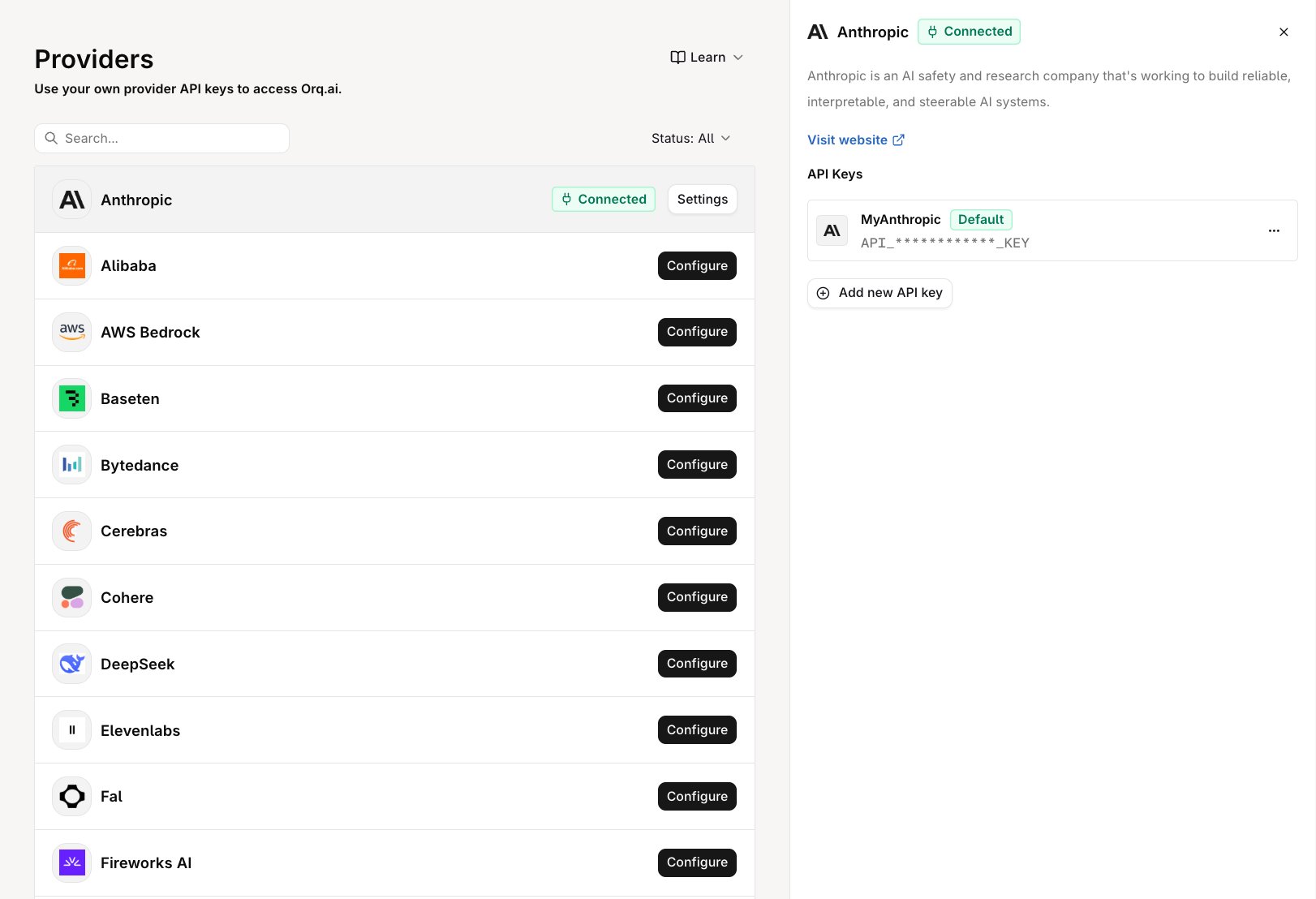 Once a provider has at least one key, its row shows a **Connected** badge and a Settings button that reopens the provider panel.
View the full list of providers available in the **AI Gateway**, including OpenAI, Anthropic, Google, AWS Bedrock, Azure, and more.
## Managing API keys
The provider panel shows the provider's description, a **Visit website** link, and the **API Keys** list for that provider. Each key row shows the key's name, its masked value, and a **Default** badge on the workspace's default key for the provider.
The row menu holds the key's actions:
| Action | Description |
| - | - |
| **Set as Default** | Makes this key the one the **AI Gateway** authenticates with for the provider. Disabled on the key that is already the default. |
| **Edit** | Renames the key. The API key field is read-only when editing. |
| **Delete** | Removes the key. Deleting asks for confirmation first. |
Add another key with Add new API key in the same panel.
### How the default key is chosen
Requests to a provider's models authenticate with the provider's default key, or the first key added when none is marked default. Switching keys means promoting another one rather than editing the current one.
Promote a key at any time with **Set as Default** on its row menu; the badge moves to the promoted key.
## Multiple keys per provider
Multiple keys per provider support two workflows:
* **Key rotation**: add the replacement key alongside the active one, then promote it with **Set as Default** when the old key is revoked or exhausted.
* **Environment separation**: keys belong to a single workspace, so a workspace serving a non-production environment holds its own provider credentials.
## Why use your own keys
For production workloads, BYOK provides:
* **Rate limit ownership**: provider rate limits apply to the organization's account, not a shared pool
* **Direct billing**: spend is billed by the provider directly; configure limits and alerts independently
* **Data residency**: requests go from the **AI Gateway** to the provider account with no shared credential layer
This documentation is built and hosted on [Mintlify](https://mintlify.com), a developer documentation platform.
Once a provider has at least one key, its row shows a **Connected** badge and a Settings button that reopens the provider panel.
View the full list of providers available in the **AI Gateway**, including OpenAI, Anthropic, Google, AWS Bedrock, Azure, and more.
## Managing API keys
The provider panel shows the provider's description, a **Visit website** link, and the **API Keys** list for that provider. Each key row shows the key's name, its masked value, and a **Default** badge on the workspace's default key for the provider.
The row menu holds the key's actions:
| Action | Description |
| - | - |
| **Set as Default** | Makes this key the one the **AI Gateway** authenticates with for the provider. Disabled on the key that is already the default. |
| **Edit** | Renames the key. The API key field is read-only when editing. |
| **Delete** | Removes the key. Deleting asks for confirmation first. |
Add another key with Add new API key in the same panel.
### How the default key is chosen
Requests to a provider's models authenticate with the provider's default key, or the first key added when none is marked default. Switching keys means promoting another one rather than editing the current one.
Promote a key at any time with **Set as Default** on its row menu; the badge moves to the promoted key.
## Multiple keys per provider
Multiple keys per provider support two workflows:
* **Key rotation**: add the replacement key alongside the active one, then promote it with **Set as Default** when the old key is revoked or exhausted.
* **Environment separation**: keys belong to a single workspace, so a workspace serving a non-production environment holds its own provider credentials.
## Why use your own keys
For production workloads, BYOK provides:
* **Rate limit ownership**: provider rate limits apply to the organization's account, not a shared pool
* **Direct billing**: spend is billed by the provider directly; configure limits and alerts independently
* **Data residency**: requests go from the **AI Gateway** to the provider account with no shared credential layer
This documentation is built and hosted on [Mintlify](https://mintlify.com), a developer documentation platform.