> ## Documentation Index
> Fetch the complete documentation index at: https://docs.orq.ai/llms.txt
> Use this file to discover all available pages before exploring further.
# Models
> Browse available LLM models and enable them in the AI Gateway. Filter by provider, capability, and pricing to find the right model.
## Enabling new Models
To see available Models and enable them for use, navigate to the **Models** page in **AI Gateway**.
 Each model row carries the following columns. **Status** and **Model Access** are visible to workspace admins only.
| Column | Description |
| - | - |
| **Name** | The model's display name, provider logo, and model ID. A **New** badge marks models added in the last 14 days, a **Deprecated soon** badge marks models with a scheduled removal date, and a key icon marks providers with a custom API key configured. |
| **Status** | Toggle to enable or disable the model for the **AI Gateway**. |
| **Model Access** | The projects that can use the model: **All Projects**, **No projects** (custom sharing with none selected), or the selected project names. See [Restrict Model Access by Project](#restrict-model-access-by-project). |
| **Price** | Input and output cost per 1M tokens. Image models show a per-image cost instead. Hover the cell for the full pricing breakdown. |
| **Intelligence** | The model's Intelligence Index, the value the [**Smart Router**](/ai-gateway/smart-router) bands read from. |
| **Capabilities** | Icons for the modalities and capabilities the model supports. Hover the cell for the full list. |
| **Released** | The model's release date. |
| **Max Output Tokens** | Maximum tokens the model can generate per response. |
| **Context Window** | Total token window (input + output). |
| **Owner** | **Public** for models provided by **Orq.ai**, **Private** for models onboarded to the workspace. |
| **Location** | The region the model is served from. |
Use Sort: Newest to reorder by **Newest**, **Pricing: Low to High**, **Pricing: High to Low**, **Context: Low to High**, **Context: High to Low**, **Intelligence: High to Low**, **Intelligence: Low to High**, or **Max Output Tokens**. Use Columns to show or hide individual columns.
Use the **Status** toggle to **Enable** a model for use with the **AI Gateway**.
### Row actions
Hover a model's **Name** cell to reveal that row's actions:
| Action | Description |
| - | - |
| **Copy Model ID** | Copies the model ID to the clipboard, with the workspace prefix applied to private models. |
| **View Code** | Opens pre-filled cURL, Node.js, and Python snippets for calling the model. |
| **Access control** | Opens the [project access settings](#restrict-model-access-by-project) for the model. Shown on enabled models. |
Private models carry a **Delete** action in the row menu. Models onboarded through providers that support editing, such as **OpenAI Compatible**, **Azure**, and **Google**, also show **Edit**, which reopens the provider wizard.
### Filters
Use the modality tabs at the top of the list to scope models by type:
All Text Image Audio Speech Embedding Moderation Rerank Classify
The sidebar provides additional filters:
| Filter | Description |
| - | - |
| **Location** | Filter by region: Europe, United States, Global, APAC, Australia, Singapore |
| **Access** | Toggle [**Zero data retention**](/enterprise/sovereign-ai#zero-data-retention) for ZDR-compliant providers, or [**BYOK**](/ai-gateway/providers-overview) for providers where an API key has been added |
| **Providers** | Filter by LLM provider. See [Providers](/ai-gateway/providers-overview) to configure API keys |
| **Status** | Show Enabled or Disabled models. Visible to workspace admins only |
| **Features** | Filter by capability: Base64, Classify, Code Execution, Image Edit, JSON Mode, PDF, Reasoning, Streaming, Tool Calling, URL, Vision, Web Search |
| **Context length** | Drag the range slider to filter by context window size. The bounds follow the models in the catalog |
| **Intelligence index** | Drag the range slider to filter by Intelligence Index |
| **Input price / 1M tokens** | Drag the range slider to filter by input cost per 1M tokens |
| **Owner** | Filter between Public (**Orq.ai**-provided) and Private (onboarded) models |
To enable a model, toggle it on. It will immediately be available to call with the **AI Gateway**.
### Enable or Disable Models via the API
Models can also be enabled and disabled programmatically using the **Models** API. This is useful for CI/CD pipelines, automation scripts, or infrastructure-as-code workflows.
These endpoints sit on the [management plane](/management-apis/overview) and authenticate with a [Management Key](/ai-studio/organization/management-keys) that has `workspace-model` write access. A standard API Key cannot be granted the `workspace-model` domain and is rejected with **403**.
Enable a model:
```bash cURL theme={"theme":{"light":"github-light","dark":"github-dark"}}
curl --request POST \
--url https://my.orq.ai/v2/workspace-models \
--header "Authorization: Bearer $ORQ_MANAGEMENT_KEY" \
--header "Content-Type: application/json" \
--data '{ "model_id": "openai/gpt-5.6-sol" }'
```
```typescript TypeScript theme={"theme":{"light":"github-light","dark":"github-dark"}}
import { Orq } from "@orq-ai/node";
const orq = new Orq({ apiKey: process.env.ORQ_MANAGEMENT_KEY });
await orq.models.enable({ modelId: "openai/gpt-5.6-sol" });
```
```python Python theme={"theme":{"light":"github-light","dark":"github-dark"}}
from orq_ai_sdk import Orq
import os
orq = Orq(api_key=os.environ["ORQ_MANAGEMENT_KEY"])
orq.models.enable(model_id="openai/gpt-5.6-sol")
```
Disable a model:
```bash cURL theme={"theme":{"light":"github-light","dark":"github-dark"}}
curl --request DELETE \
--url https://my.orq.ai/v2/workspace-models/openai/gpt-5.6-sol \
--header "Authorization: Bearer $ORQ_MANAGEMENT_KEY"
```
```typescript TypeScript theme={"theme":{"light":"github-light","dark":"github-dark"}}
import { Orq } from "@orq-ai/node";
const orq = new Orq({ apiKey: process.env.ORQ_MANAGEMENT_KEY });
await orq.models.disable({ modelId: "openai/gpt-5.6-sol" });
```
```python Python theme={"theme":{"light":"github-light","dark":"github-dark"}}
from orq_ai_sdk import Orq
import os
orq = Orq(api_key=os.environ["ORQ_MANAGEMENT_KEY"])
orq.models.disable(model_id="openai/gpt-5.6-sol")
```
Both endpoints return **204** on success. Re-enabling an already-enabled model or disabling an already-disabled model is idempotent and also returns **204**.
When **Enforce enabled models** is turned on in [General Settings](/ai-studio/organization/workspace-settings), only models enabled through the dashboard or this API are available for routing. Requests that reference a non-enabled model are rejected.
For full request and response schemas, see [Enable model for workspace](/reference/models/enable-model-for-workspace) and [Disable model for workspace](/reference/models/disable-model-for-workspace).
### Restrict Model Access by Project
Once a model is enabled, workspace admins can see an **Access control** icon next to it. Select it to choose which projects can use the model, in one of two modes:
* **All projects** (default): every project in the workspace can use the model.
* **Custom**: each project gets its own on/off toggle, letting admins grant or revoke access per project.
Changes save immediately; there is no separate save action.
Access control is admin-only. Members with other roles see only the models an admin has approved within their chosen projects.
## Onboarding Private Models
Onboard private models by choosing Model at the top-right of the screen. This is useful when hosting a fine-tuned model or any model deployed on a private provider such as an OpenAI-compatible endpoint, **Azure AI Foundry**, or **AWS Bedrock**.
### Private Models Providers
In the **AI Gateway** sidebar, go to **Models**, then click Model at the top-right and select **OpenAI Compatible**.
Choose **Chat Completion**, **Completion**, **Embedding**, or **Image**.
Enter the **Base URL** of the OpenAI-compatible endpoint, the **Model ID** the provider defines, and an **API Key**.
Set the **Model name** the gateway exposes, then fill in the token limits, per-token costs, and capabilities.
For the full field reference, see [OpenAI-compatible models](/ai-studio/integrations/providers/open-ai-like).
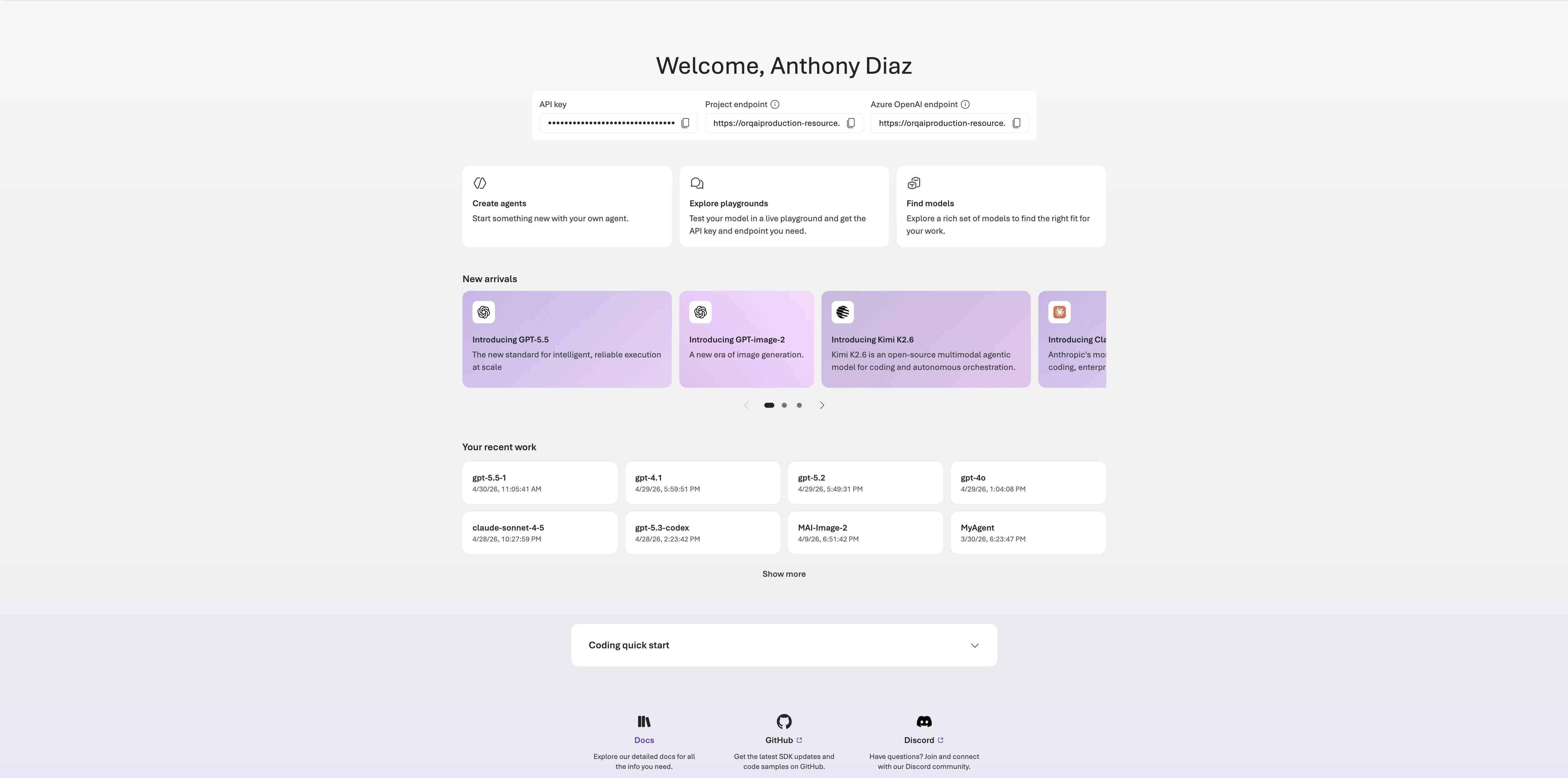
From the [**Azure AI Foundry**](https://ai.azure.com/) project homepage, copy the **API key** and one of the two endpoints shown at the top. **Orq.ai** accepts the following endpoints:
| Endpoint type | Format | What it imports |
| - | - | - |
| Azure OpenAI endpoint | `https://.openai.azure.com/openai/v1` | OpenAI-compatible deployments |
| Project endpoint | `https://.services.ai.azure.com/api/projects/` | All deployments from publishers in the project (Anthropic, Cohere, and xAI) |
Paste the endpoint URL exactly as shown in **Azure AI Foundry**. **Orq.ai** does not append any path suffix.
To learn more about the Azure AI Foundry deployment, see our [Provider Documentation](/ai-studio/integrations/providers/azure).
In the **AI Gateway** sidebar, go to **Models**, then click Model at the top-right and select **Azure**.
Enter the **Base URL** and **API Key**.
Each model row carries the following columns. **Status** and **Model Access** are visible to workspace admins only.
| Column | Description |
| - | - |
| **Name** | The model's display name, provider logo, and model ID. A **New** badge marks models added in the last 14 days, a **Deprecated soon** badge marks models with a scheduled removal date, and a key icon marks providers with a custom API key configured. |
| **Status** | Toggle to enable or disable the model for the **AI Gateway**. |
| **Model Access** | The projects that can use the model: **All Projects**, **No projects** (custom sharing with none selected), or the selected project names. See [Restrict Model Access by Project](#restrict-model-access-by-project). |
| **Price** | Input and output cost per 1M tokens. Image models show a per-image cost instead. Hover the cell for the full pricing breakdown. |
| **Intelligence** | The model's Intelligence Index, the value the [**Smart Router**](/ai-gateway/smart-router) bands read from. |
| **Capabilities** | Icons for the modalities and capabilities the model supports. Hover the cell for the full list. |
| **Released** | The model's release date. |
| **Max Output Tokens** | Maximum tokens the model can generate per response. |
| **Context Window** | Total token window (input + output). |
| **Owner** | **Public** for models provided by **Orq.ai**, **Private** for models onboarded to the workspace. |
| **Location** | The region the model is served from. |
Use Sort: Newest to reorder by **Newest**, **Pricing: Low to High**, **Pricing: High to Low**, **Context: Low to High**, **Context: High to Low**, **Intelligence: High to Low**, **Intelligence: Low to High**, or **Max Output Tokens**. Use Columns to show or hide individual columns.
Use the **Status** toggle to **Enable** a model for use with the **AI Gateway**.
### Row actions
Hover a model's **Name** cell to reveal that row's actions:
| Action | Description |
| - | - |
| **Copy Model ID** | Copies the model ID to the clipboard, with the workspace prefix applied to private models. |
| **View Code** | Opens pre-filled cURL, Node.js, and Python snippets for calling the model. |
| **Access control** | Opens the [project access settings](#restrict-model-access-by-project) for the model. Shown on enabled models. |
Private models carry a **Delete** action in the row menu. Models onboarded through providers that support editing, such as **OpenAI Compatible**, **Azure**, and **Google**, also show **Edit**, which reopens the provider wizard.
### Filters
Use the modality tabs at the top of the list to scope models by type:
All Text Image Audio Speech Embedding Moderation Rerank Classify
The sidebar provides additional filters:
| Filter | Description |
| - | - |
| **Location** | Filter by region: Europe, United States, Global, APAC, Australia, Singapore |
| **Access** | Toggle [**Zero data retention**](/enterprise/sovereign-ai#zero-data-retention) for ZDR-compliant providers, or [**BYOK**](/ai-gateway/providers-overview) for providers where an API key has been added |
| **Providers** | Filter by LLM provider. See [Providers](/ai-gateway/providers-overview) to configure API keys |
| **Status** | Show Enabled or Disabled models. Visible to workspace admins only |
| **Features** | Filter by capability: Base64, Classify, Code Execution, Image Edit, JSON Mode, PDF, Reasoning, Streaming, Tool Calling, URL, Vision, Web Search |
| **Context length** | Drag the range slider to filter by context window size. The bounds follow the models in the catalog |
| **Intelligence index** | Drag the range slider to filter by Intelligence Index |
| **Input price / 1M tokens** | Drag the range slider to filter by input cost per 1M tokens |
| **Owner** | Filter between Public (**Orq.ai**-provided) and Private (onboarded) models |
To enable a model, toggle it on. It will immediately be available to call with the **AI Gateway**.
### Enable or Disable Models via the API
Models can also be enabled and disabled programmatically using the **Models** API. This is useful for CI/CD pipelines, automation scripts, or infrastructure-as-code workflows.
These endpoints sit on the [management plane](/management-apis/overview) and authenticate with a [Management Key](/ai-studio/organization/management-keys) that has `workspace-model` write access. A standard API Key cannot be granted the `workspace-model` domain and is rejected with **403**.
Enable a model:
```bash cURL theme={"theme":{"light":"github-light","dark":"github-dark"}}
curl --request POST \
--url https://my.orq.ai/v2/workspace-models \
--header "Authorization: Bearer $ORQ_MANAGEMENT_KEY" \
--header "Content-Type: application/json" \
--data '{ "model_id": "openai/gpt-5.6-sol" }'
```
```typescript TypeScript theme={"theme":{"light":"github-light","dark":"github-dark"}}
import { Orq } from "@orq-ai/node";
const orq = new Orq({ apiKey: process.env.ORQ_MANAGEMENT_KEY });
await orq.models.enable({ modelId: "openai/gpt-5.6-sol" });
```
```python Python theme={"theme":{"light":"github-light","dark":"github-dark"}}
from orq_ai_sdk import Orq
import os
orq = Orq(api_key=os.environ["ORQ_MANAGEMENT_KEY"])
orq.models.enable(model_id="openai/gpt-5.6-sol")
```
Disable a model:
```bash cURL theme={"theme":{"light":"github-light","dark":"github-dark"}}
curl --request DELETE \
--url https://my.orq.ai/v2/workspace-models/openai/gpt-5.6-sol \
--header "Authorization: Bearer $ORQ_MANAGEMENT_KEY"
```
```typescript TypeScript theme={"theme":{"light":"github-light","dark":"github-dark"}}
import { Orq } from "@orq-ai/node";
const orq = new Orq({ apiKey: process.env.ORQ_MANAGEMENT_KEY });
await orq.models.disable({ modelId: "openai/gpt-5.6-sol" });
```
```python Python theme={"theme":{"light":"github-light","dark":"github-dark"}}
from orq_ai_sdk import Orq
import os
orq = Orq(api_key=os.environ["ORQ_MANAGEMENT_KEY"])
orq.models.disable(model_id="openai/gpt-5.6-sol")
```
Both endpoints return **204** on success. Re-enabling an already-enabled model or disabling an already-disabled model is idempotent and also returns **204**.
When **Enforce enabled models** is turned on in [General Settings](/ai-studio/organization/workspace-settings), only models enabled through the dashboard or this API are available for routing. Requests that reference a non-enabled model are rejected.
For full request and response schemas, see [Enable model for workspace](/reference/models/enable-model-for-workspace) and [Disable model for workspace](/reference/models/disable-model-for-workspace).
### Restrict Model Access by Project
Once a model is enabled, workspace admins can see an **Access control** icon next to it. Select it to choose which projects can use the model, in one of two modes:
* **All projects** (default): every project in the workspace can use the model.
* **Custom**: each project gets its own on/off toggle, letting admins grant or revoke access per project.
Changes save immediately; there is no separate save action.
Access control is admin-only. Members with other roles see only the models an admin has approved within their chosen projects.
## Onboarding Private Models
Onboard private models by choosing Model at the top-right of the screen. This is useful when hosting a fine-tuned model or any model deployed on a private provider such as an OpenAI-compatible endpoint, **Azure AI Foundry**, or **AWS Bedrock**.
### Private Models Providers
In the **AI Gateway** sidebar, go to **Models**, then click Model at the top-right and select **OpenAI Compatible**.
Choose **Chat Completion**, **Completion**, **Embedding**, or **Image**.
Enter the **Base URL** of the OpenAI-compatible endpoint, the **Model ID** the provider defines, and an **API Key**.
Set the **Model name** the gateway exposes, then fill in the token limits, per-token costs, and capabilities.
For the full field reference, see [OpenAI-compatible models](/ai-studio/integrations/providers/open-ai-like).
From the [**Azure AI Foundry**](https://ai.azure.com/) project homepage, copy the **API key** and one of the two endpoints shown at the top. **Orq.ai** accepts the following endpoints:
| Endpoint type | Format | What it imports |
| - | - | - |
| Azure OpenAI endpoint | `https://.openai.azure.com/openai/v1` | OpenAI-compatible deployments |
| Project endpoint | `https://.services.ai.azure.com/api/projects/` | All deployments from publishers in the project (Anthropic, Cohere, and xAI) |
Paste the endpoint URL exactly as shown in **Azure AI Foundry**. **Orq.ai** does not append any path suffix.
To learn more about the Azure AI Foundry deployment, see our [Provider Documentation](/ai-studio/integrations/providers/azure).
In the **AI Gateway** sidebar, go to **Models**, then click Model at the top-right and select **Azure**.
Enter the **Base URL** and **API Key**.
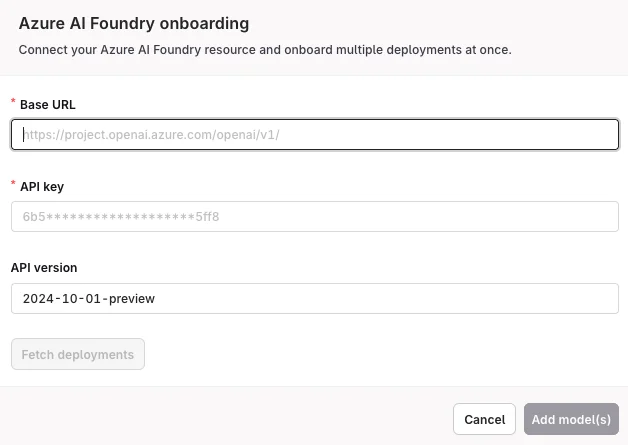 Click **Fetch deployments** to automatically import all available deployments. The imported models appear in the **Models** list. Toggle each model **Enabled** before use. Enabled models are available for routing requests through [Routing Rules](/ai-gateway/configuration/routing-rules).
Reference imported models in code using `@azure/` (see [Referencing Private Models in Code](#referencing-private-models-in-code)).
To add Bedrock models, first create an [Integration](/ai-studio/integrations/providers/aws-bedrock) for the AWS account.
In the **AI Gateway** sidebar, go to **Models**, click Model at the top-right and select **AWS Bedrock**.
Select the **AWS Integration**, enter the **Inference Profile ARN**, and confirm the **Region** parsed from the ARN.
Click **Validate Connection**, then enter a display name and the model details.
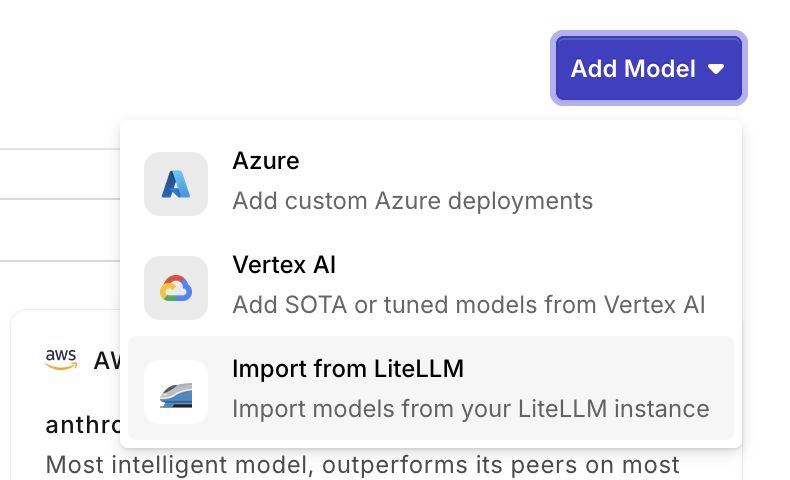
To import LiteLLM models, first create an [Integration](/ai-studio/integrations/providers/litellm) for the LiteLLM instance. After creation, return to the **AI Gateway** and import models from the connected instance.
Click **Fetch deployments** to automatically import all available deployments. The imported models appear in the **Models** list. Toggle each model **Enabled** before use. Enabled models are available for routing requests through [Routing Rules](/ai-gateway/configuration/routing-rules).
Reference imported models in code using `@azure/` (see [Referencing Private Models in Code](#referencing-private-models-in-code)).
To add Bedrock models, first create an [Integration](/ai-studio/integrations/providers/aws-bedrock) for the AWS account.
In the **AI Gateway** sidebar, go to **Models**, click Model at the top-right and select **AWS Bedrock**.
Select the **AWS Integration**, enter the **Inference Profile ARN**, and confirm the **Region** parsed from the ARN.
Click **Validate Connection**, then enter a display name and the model details.
To import LiteLLM models, first create an [Integration](/ai-studio/integrations/providers/litellm) for the LiteLLM instance. After creation, return to the **AI Gateway** and import models from the connected instance.
 ### Referencing Private Models in Code
When referencing private models through the SDKs, API, or [Supported Libraries](/ai-studio/integrations/frameworks/overview), the model is referenced by the following string: `@/`.
> Example: `corp@azure/gpt-5.6-sol`
## Bring Your Own Key (BYOK)
To start using models, connect provider API keys via [**BYOK**](/ai-gateway/providers-overview) in the **AI Gateway** sidebar.
This documentation is built and hosted on [Mintlify](https://mintlify.com), a developer documentation platform.
### Referencing Private Models in Code
When referencing private models through the SDKs, API, or [Supported Libraries](/ai-studio/integrations/frameworks/overview), the model is referenced by the following string: `@/`.
> Example: `corp@azure/gpt-5.6-sol`
## Bring Your Own Key (BYOK)
To start using models, connect provider API keys via [**BYOK**](/ai-gateway/providers-overview) in the **AI Gateway** sidebar.
This documentation is built and hosted on [Mintlify](https://mintlify.com), a developer documentation platform.