Give AI agents entity-scoped long-term memory with Memories in Orq.ai, persisting user context across sessions for personalized recall.
Memories holds the Memory Store objects that give agents long-term memory, allowing them to retain and retrieve information across conversations and sessions. Unlike Knowledge Bases, a Memory Store is entity-scoped: each Memory within a store is tied to a specific entity (a user, session, or any object the application defines), enabling personalized, per-entity recall.Only long-term memory is currently supported: stored information persists indefinitely with no automatic expiration.To use a Memory Store with an Agent, see Connect Memory Stores.
Connect Memory Stores to Agents
Give the agent persistent per-entity memory across conversations.
Use Cases
Memory Stores store arbitrary text per entity, such as a user or session. Documents accumulate over time and are retrieved semantically on each interaction. Use when an agent needs to remember what a specific person said or did in a previous conversation.
Architecture
Concept
Description
Memory Store
Top-level container organizing all memories for a use case
Memory
An entity within the store (e.g., a specific user, customer, or session)
Memory Document
The actual content item stored within a Memory, embedded for semantic search
Create a Memory Store
AI Studio
API & SDK
CLI
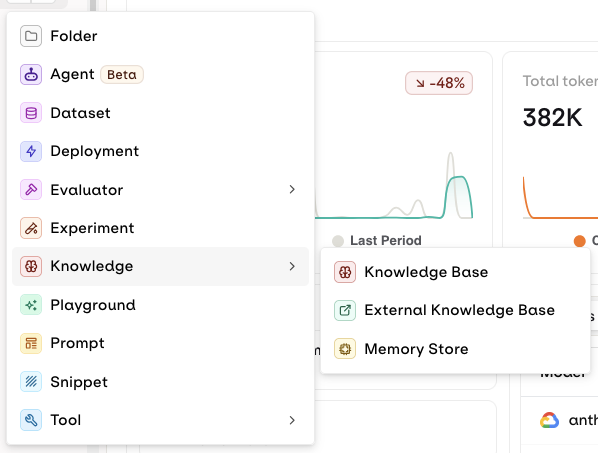
Open Memories in the Managed Agents section, then click Memory Store.
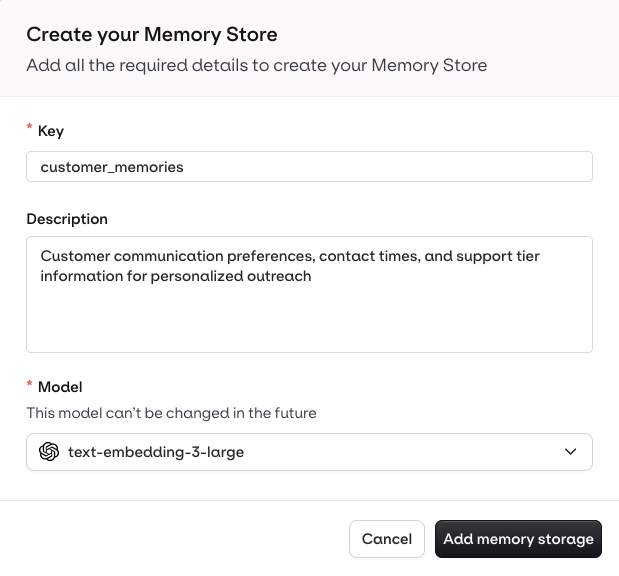
Create a Memory Store.
The following modal opens:
Enter the Memory Store information.
Ensure the description is thorough, as Agents use it to identify the correct Memory Store:
Good example: “Customer communication preferences, contact times, and support tier information for personalized outreach”
Bad example: “Customer data”
Show Example Agent instruction
When a customer shares their communication preferences or contact information:
Extract key details (preferred contact method, time windows, support tier)
Store in the “customer_preferences” Memory Store
Use clear, descriptive language
The Model is fixed at creation. Searching with a different embedding model needs a new Memory Store, with its memories written again.
key: unique identifier for the store (immutable after creation)
path: the Project and folder (e.g., default)
embedding_config.model: embedding model for semantic search (e.g., cohere/embed-v4.0); fixed at creation, so a different model means a new store
curl --request POST \ --url https://my.orq.ai/v2/memory-stores \ --header 'accept: application/json' \ --header 'authorization: Bearer <ORQ_API_KEY>' \ --header 'content-type: application/json' \ --data '{ "key": "customer_information", "description": "Store for customer interaction history and preferences", "path": "default", "embedding_config": { "model": "cohere/embed-v4.0" }}'
from orq_ai_sdk import Orqimport osclient = Orq(api_key=os.environ["ORQ_API_KEY"])store = client.memory_stores.create( key="customer_information", description="Store for customer interaction history and preferences", path="default", embedding_config={ "model": "cohere/embed-v4.0" })
import { Orq } from '@orq-ai/node';const client = new Orq({ apiKey: process.env.ORQ_API_KEY,});await client.memoryStores.create({ key: 'customer_information', description: 'Store for customer interaction history and preferences', path: 'default', embeddingConfig: { model: 'cohere/embed-v4.0', },});
The key is immutable and must be unique within the workspace. It cannot be changed after creation.
orq memory-stores create \
  --key customer_information \
  --description "Store for customer interaction history and preferences" \
  --path default \
  --embedding-config '{"model": "cohere/embed-v4.0"}'
See install and setup to get started with the CLI. Run orq memory-stores create --help for the full flag reference.
List Memory Stores
List results follow the caller’s project access when project_id is omitted. A
project-scoped API key receives only stores from its allowed projects. Workspace
admins and external API keys without a project restriction can list across
projects. Use project_id to filter results to a specific project.
Manage Memories and Documents
A Memory represents a specific entity within a Memory Store, identified by an entity_id. Each Memory holds Documents: the actual text content embedded for semantic search.
AI Studio
API & SDK
CLI
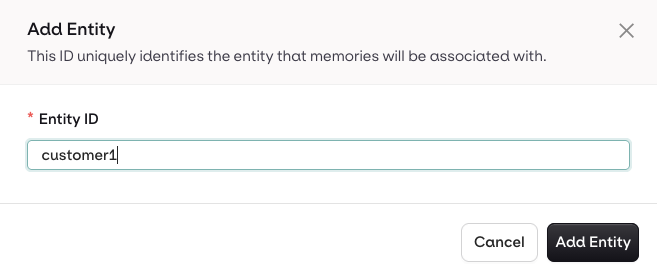
Create an EntityOnce a Memory Store is created, select Add Entity, enter an ID for the entity, and press Save.
Choose a clear identifier to find entities later.
View MemoriesSelect an entity to see all Memory Documents stored for it. Each document shows the date it was recorded. Use date filters to narrow results.
Use the date filters to find memories in an entity.
Add a Memory DocumentUse Add Memory to manually add a Memory Document to an entity. Fill in the content and press Add Memory.
Memories are best managed dynamically through the API. See the API & SDK tab for programmatic access.
Add a Memory DocumentDocuments hold the text content that agents can retrieve. Each document is embedded automatically when created.
curl --request POST \ --url https://my.orq.ai/v2/memory-stores/customer_information/memories/<memory_entity_id>/documents \ --header 'accept: application/json' \ --header 'authorization: Bearer <ORQ_API_KEY>' \ --header 'content-type: application/json' \ --data '{ "text": "Customer prefers email communication. Best contact window: 2-4 PM EST. Premium support subscriber."}'
document = client.memory_stores.create_document( memory_store_key="customer_information", memory_entity_id=memory._id, text="Customer prefers email communication. Best contact window: 2-4 PM EST. Premium support subscriber.")print(f"Created document with ID: {document._id}")
const document = await client.memoryStores.createDocument({ memoryStoreKey: 'customer_information', memoryEntityId: memory._id, requestBody: { text: 'Customer prefers email communication. Best contact window: 2-4 PM EST. Premium support subscriber.', },});console.log(`Created document with ID: ${document._id}`);
Update a Memory Document
curl --request PATCH \ --url https://my.orq.ai/v2/memory-stores/customer_information/memories/<memory_entity_id>/documents/<document_id> \ --header 'accept: application/json' \ --header 'authorization: Bearer <ORQ_API_KEY>' \ --header 'content-type: application/json' \ --data '{ "text": "Customer strongly prefers email. Contact window: 2-4 PM EST weekdays. Premium support subscriber since Jan 2024."}'
client.memory_stores.update_document( memory_store_key="customer_information", memory_entity_id="<memory_entity_id>", document_id="<document_id>", text="Customer strongly prefers email. Contact window: 2-4 PM EST weekdays. Premium support subscriber since Jan 2024.")
await client.memoryStores.updateDocument({ memoryStoreKey: 'customer_information', memoryEntityId: '<memory_entity_id>', documentId: '<document_id>', requestBody: { text: 'Customer strongly prefers email. Contact window: 2-4 PM EST weekdays. Premium support subscriber since Jan 2024.', },});
See install and setup to get started with the CLI. Run orq memory-stores --help for the full command reference.
Best Practices
Entity ID strategy: Use consistent, unique identifiers. Prefix by type (e.g., user_123, session_456) and keep IDs stable across all services.Descriptions: Write exhaustive Memory Store descriptions. Agents use them to identify the correct store to query.Organization: Create separate stores for different contexts (customers, products, sessions). Use descriptive keys.Metadata: Use tags for filtering and categorization, not for storing large text content. Keep data types consistent per field.


 AI Studio