Skills are reusable, instruction-driven capabilities in Orq.ai. Define a task once and plug it into any agent, prompt, or Jinja template that needs it.
Skills are reusable, instruction-driven capabilities that tell an Agent how to perform a specific task reliably, using the right context, tools, steps, and output format. Attach a Skill to an Agent so it can invoke it on demand when relevant, or reference it statically inside agent instructions, Prompts, and Jinja templates using {{skill.key}}. Any update to a Skill propagates automatically to every reference.
Use Cases
Modular agent capabilities
Build agents that invoke specialized Skills on demand: a support agent that draws on a “summarize thread” Skill only when the conversation warrants it, or a research agent that invokes an “extract key claims” Skill selectively.
Shared tone and brand voice
Package your brand guidelines, writing style, or response format rules into a Skill and embed it across every agent and prompt that needs it. Update once and the change propagates everywhere.
Reusable domain expertise
Encode compliance rules, classification criteria, or structured output schemas as Skills. Any team building on top of the same agents or prompts shares the same versioned definition without duplication.
Using Skills with Agents
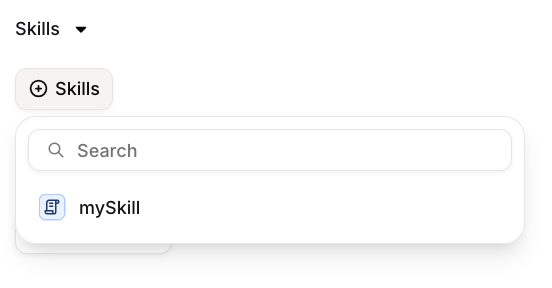
Open the Skills section in the agent configuration, click Skills, and search for the Skill to attach it. Once attached, the agent can invoke it when relevant, without the Skill being present in the instructions at all times. Use this for capabilities the agent should draw on selectively depending on the conversation, for example a “summarize thread” Skill invoked only when the user asks for a summary.
Attaching a Skill to an agent for on-demand invocation.
Any update to a Skill propagates automatically to every agent that has it attached.
Creating a Skill
AI Studio
API & SDK
MCP
CLI
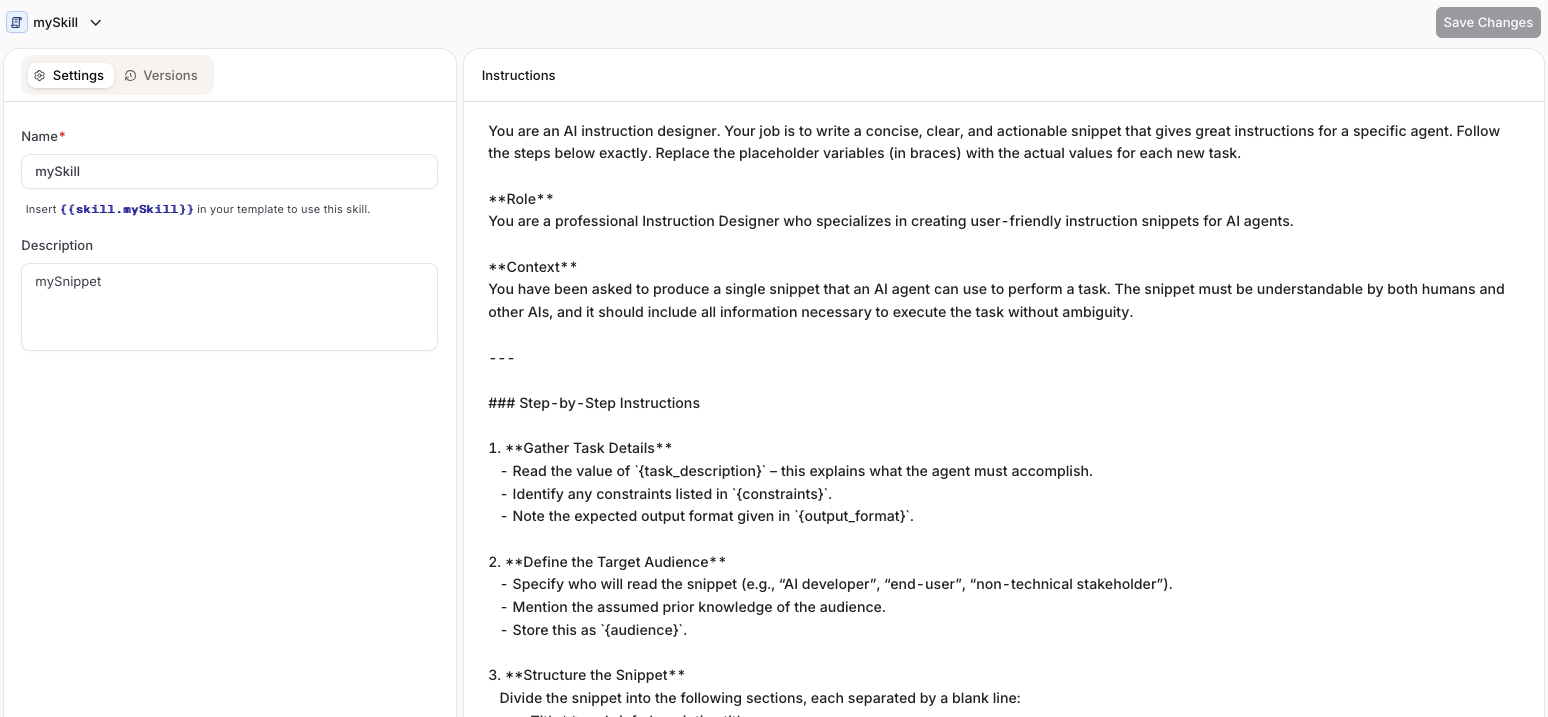
Open Skills in the Managed Agents section, then click Skill.Fill in a key that will be used to reference the Skill and configure the content.
Creating a Skill in AI Studio.
curl -X POST https://my.orq.ai/v2/skills \
  -H "Authorization: Bearer $ORQ_API_KEY" \
  -H "Content-Type: application/json" \
  -d '{
    "display_name": "summarize_thread",
    "description": "Summarizes a support conversation in 3 bullet points",
    "instructions": "Summarize the conversation in exactly 3 bullet points. Be concise.",
    "tags": ["support", "summarization"],
    "path": "Default/Skills"
  }'
from orq_ai_sdk import Orqimport osorq = Orq(api_key=os.environ["ORQ_API_KEY"])result = orq.skills.create( request={ "display_name": "summarize_thread", "description": "Summarizes a support conversation in 3 bullet points", "instructions": "Summarize the conversation in exactly 3 bullet points. Be concise.", "tags": ["support", "summarization"], "path": "Default/Skills", })print(result.skill.skill_id)
import { Orq } from "@orq-ai/node";const orq = new Orq({ apiKey: process.env["ORQ_API_KEY"] ?? "" });const result = await orq.skills.create({ displayName: "summarize_thread", description: "Summarizes a support conversation in 3 bullet points", instructions: "Summarize the conversation in exactly 3 bullet points. Be concise.", tags: ["support", "summarization"], path: "Default/Skills",});console.log(result.skill?.skillId);
Create a skill called "summarize_thread" that summarizes a support conversation in 3 bullet points
The assistant uses create_skill with the display name, instructions, and any tags.
orq skills create \
  --display-name summarize_thread \
  --description "Summarizes a support conversation in 3 bullet points" \
  --instructions "Summarize the conversation in exactly 3 bullet points. Be concise." \
  --tags support --tags summarization \
  --path Default/Skills
See install and setup to get started with the CLI. Run orq skills create --help for the full flag reference.
Versions
Saving a Skill in AI Studio creates a new version. The Versions tab shows the full history, and clicking the compare icon on any version opens the Compare Changes view for a side-by-side diff against another version.
Restoring a Version
In Compare Changes (see above), click Restore next to an older version to load it into the current working draft.Restore does not save automatically: the Skill is loaded into the draft as unsaved changes on the Settings tab, and Save still needs to be clicked for it to become a real version. Earlier versions are never deleted, so restoring is always reversible.
If there are unsaved changes already, a confirmation dialog asks for confirmation before overwriting them.
The assistant uses get_skill with the skill key and returns the full skill configuration.
orq skills get summarize_thread
See install and setup to get started with the CLI. Run orq skills get --help for the full flag reference.
Update
AI Studio
API & SDK
MCP
CLI
Open the Skill in AI Studio, edit the content or settings, and save to publish the update. All references update automatically.
The skill_id parameter accepts either the generated skill ID (e.g. skill_01H...) or the display name.
curl -X PATCH https://my.orq.ai/v2/skills/summarize_thread \
  -H "Authorization: Bearer $ORQ_API_KEY" \
  -H "Content-Type: application/json" \
  -d '{
    "instructions": "Summarize in 3 bullet points. Include a confidence score."
  }'
from orq_ai_sdk import Orqimport osorq = Orq(api_key=os.environ["ORQ_API_KEY"])result = orq.skills.update( skill_id="summarize_thread", instructions="Summarize in 3 bullet points. Include a confidence score.",)print(result.skill.skill_id)
import { Orq } from "@orq-ai/node";const orq = new Orq({ apiKey: process.env["ORQ_API_KEY"] ?? "" });const result = await orq.skills.update({ skillId: "summarize_thread", updateSkillRequest: { instructions: "Summarize in 3 bullet points. Include a confidence score.", },});console.log(result.skill?.skillId);
The assistant uses delete_skill with the skill key.
orq skills delete summarize_thread
See install and setup to get started with the CLI. Run orq skills delete --help for the full flag reference.
Static references with {{skill.key}}
Prompt Snippets are now Skills. The {{snippet.key}} syntax is replaced by {{skill.key}}.
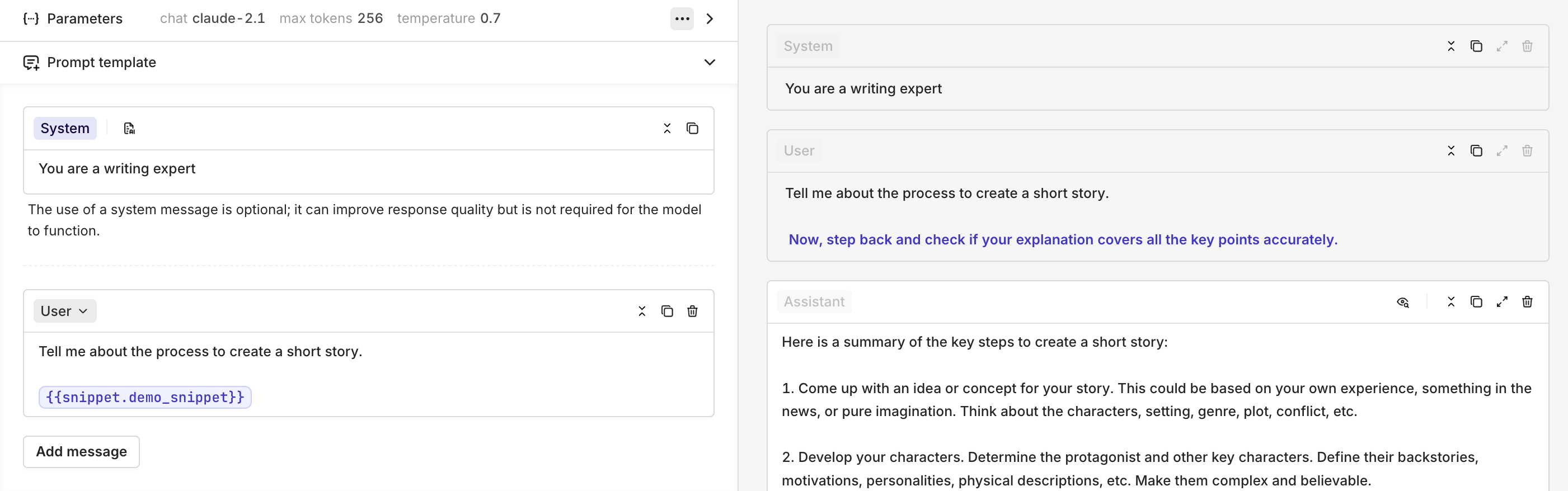
Reference a Skill using {{skill.key}}, where key is the key you set when creating the Skill. The Skill content is injected at that position every time it is rendered, and any update to the Skill is automatically reflected in every reference.A Skill key must start with a letter and may contain letters, numbers, dashes, and underscores. Separators cannot lead, trail, or repeat, so weekly-report and weekly_report_v2 are valid while -weekly, weekly-, and weekly--report are rejected. Dots are not allowed because a dot separates the skill prefix from the key.The {{skill.key}} form works the same way in every template engine, including keys that contain a dash. A prompt keeps working when it switches between the Text, Mustache, and Jinja engines.This works in:
Agent instructions: inject content that should always be present on every run, such as a company policy block or a standard output format. See AI Studio for more on writing instructions.
Prompts: compose prompts from reusable blocks instead of duplicating text.
Jinja templates: combine {{skill.key}} references with Jinja expressions to compose dynamic, structured prompts from reusable blocks deterministically.
Using a Skill to enrich a configured prompt.
Was this page helpful?
Assistant
Responses are generated using AI and may contain mistakes.


 AI Studio
 MCP