

Observability
Instrument your code with OpenTelemetry to capture traces, logs, and metrics for every LLM call, agent step, and tool use.
Observability
This guide covers Python. For Java installation and examples, see the Google ADK Java quickstart.Getting Started
Google Agent Development Kit (ADK) is a flexible, model-agnostic framework for developing and deploying AI agents. ADK simplifies building complex agent architectures with workflow orchestration, tool integration, and multi-agent collaboration. Integrate with Orq.ai to monitor agent behavior, track tool usage, analyze workflows, and optimize your agent systems.Prerequisites
Before you begin, ensure you have:- An Orq.ai account and API Key
- Google API key (for model access)
- Python 3.11+
- Google ADK installed in your project
Install Dependencies
Python:Configure Orq.ai
Set up your environment variables to connect to Orq.ai’s OpenTelemetry collector: Unix/Linux/macOS:Integrations
Use the Orq.ai Google ADK integration to capture OpenInference spans and propagate trace context to model requests.Instrument Google ADK
Initialize the integration before creating Gemini clients or running Agents. Pass the existingTracerProvider when OpenTelemetry is already configured. Call instrument_google_adk instead of separately calling GoogleADKInstrumentor().instrument().
Combine tracing with the AI Gateway
For model requests through/v3/google, follow the Google Gen AI SDK setup and keep the OTLP exporter and AI Gateway API keys scoped to the same Workspace and Project. The integration propagates W3C traceparent and tracestate headers through HTTPX, HTTPX2, Requests, and aiohttp when those transports are installed. Forward these headers through any intermediate proxy.
Each model request carries its active span context. Do not set a fixed traceparent header or reuse one across an Agent session. After setup, confirm that the exported model span and its AI Gateway request share a trace ID. Correlated calls can then be counted once in Activity while both traces remain available.
To view more examples of ADK implementation, browse the Google ADK Samples repository
Next Steps
Verify your Traces in the Orq.ai Studio.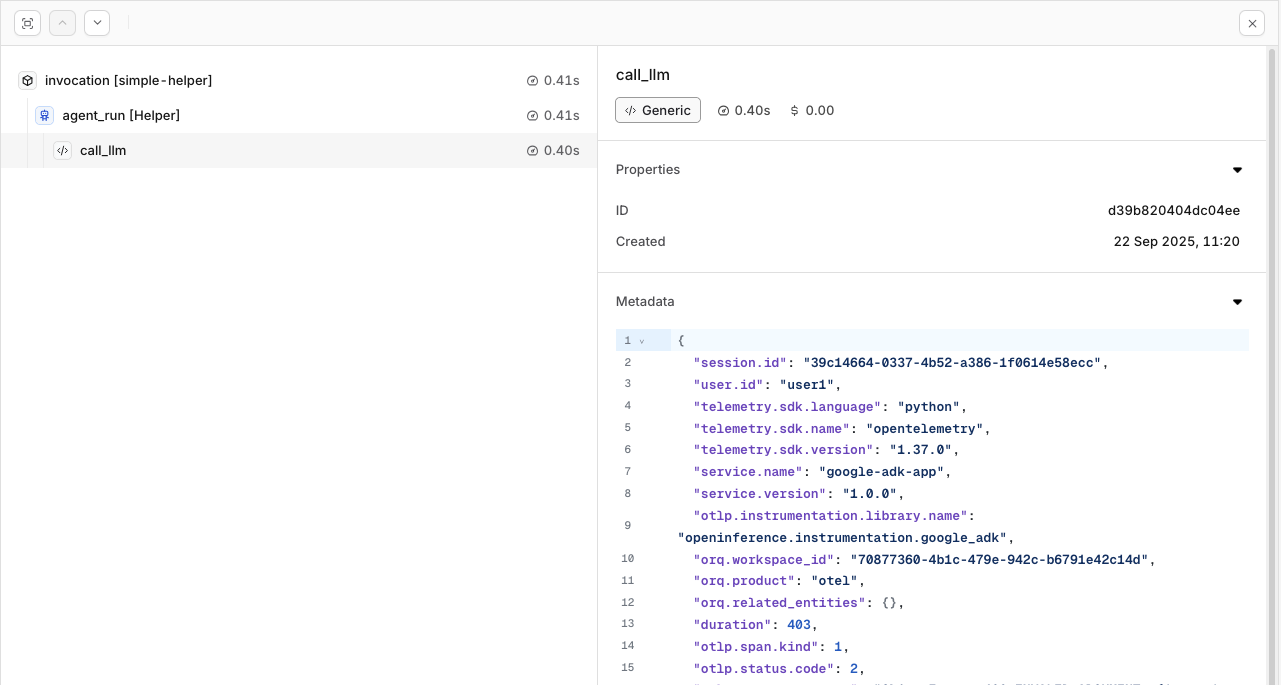
Traces will be shown for the session and calls made within the ADK implementation.
To learn more about the capabilities of Traces in Orq.ai, see Traces
Evaluations & Experiments
Once your agents are running, use Evaluatorq to score outputs across a dataset and Experiments to compare configurations side-by-side.Run Evaluations with Evaluatorq
Run parallel evaluations across your agents and compare results.
Run Experiments via the API
Compare agent configurations and view results in the AI Studio.