Create and manage Orq.ai API keys, choosing user or service account keys with granular permissions for secure API access.
What are API Keys
API Keys are tokens that authenticate requests to Orq.ai. A key covers one project, or every project in the workspace when created without one through the API. Its permissions limit what it can do.Two key types are available, chosen by the key’s owner.
User keys
Tied to a specific user account. Automatically revoked if the user is removed from the organization or the project one of their keys is bound to. Use user keys for personal use and local development.
Service account keys
Not tied to any individual user, with a lifecycle independent of user membership. Only workspace admins can create service account keys. Use service account keys for production systems, so access does not break when a team member leaves.
Viewing API Keys
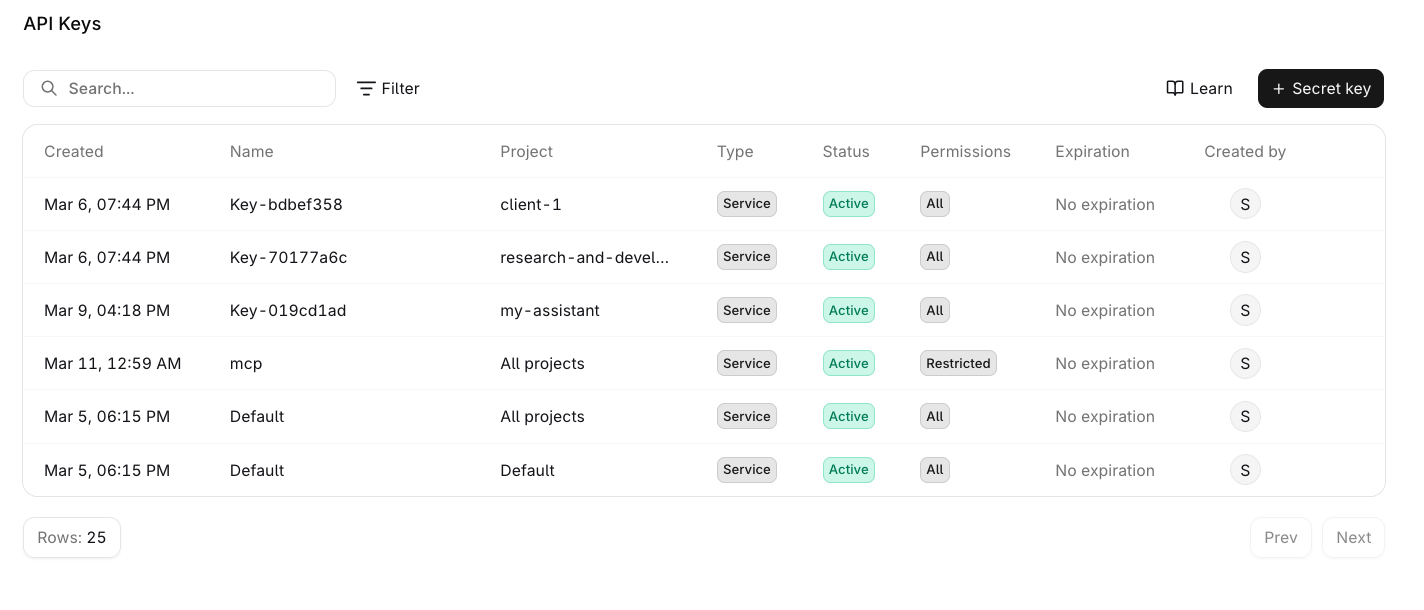
Navigate to Settings > API Keys to see all keys across projects.The table shows the following columns:
Column
Description
Created
Date the key was created
Name
Key label
Project
The project the key can reach
Type
User, Service, or Managed
Status
Active, Disabled, or Revoked
Permissions
All, Read only, or Restricted
Expiration
When the key stops authenticating, or No expiration
Last used
Last time the key authenticated, or - if never
Created by
User who created the key
Use the menu to filter by Type or Permissions.Use Sort: Created to reorder by Created (default) or Last used, newest first.A Managed key belongs to an MCP Gateway OAuth client. It cannot be edited or rotated here; admins manage the client it belongs to on the OAuth Clients tab. See MCP Gateway for the client lifecycle.
Creating an API Key
1
Open the creation panel
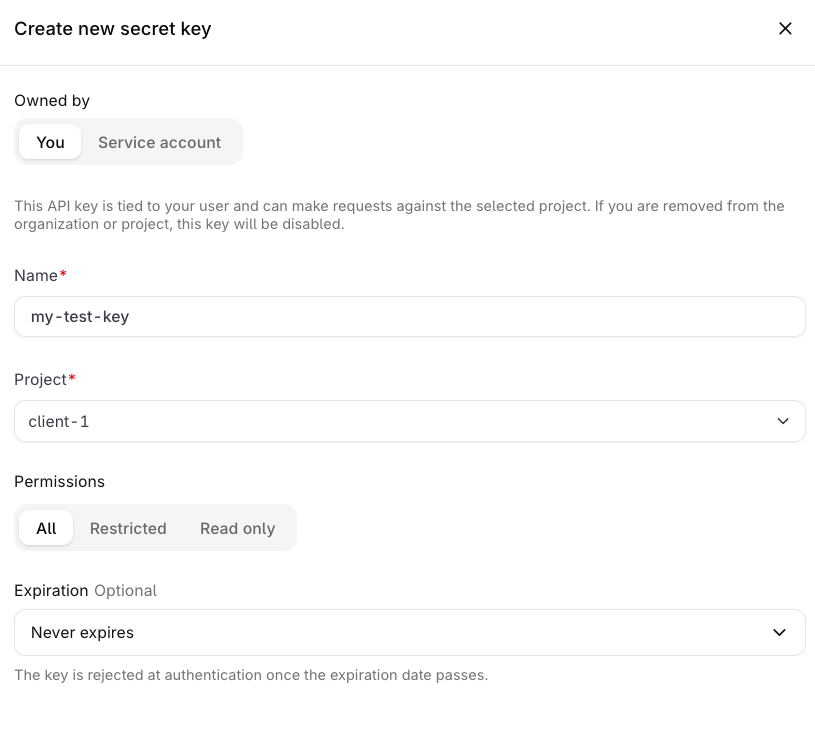
Navigate to Settings > API Keys and select Secret key. The Create new secret key sheet opens with Owned by, Name, Project, Permissions, and Expiration.
The Create new secret key sheet.
2
Choose an owner
Under Owned by, select You to create a User key, or Service account to create a key not tied to any individual user.
3
Set name and project
Enter a Name for the key and select the Project it will have access to.
4
Set permissions
Choose a permission preset. See Permissions below.
5
Set expiration (optional)
Set an Expiration date if the key should automatically become inactive after a certain date.
6
Create and copy the key
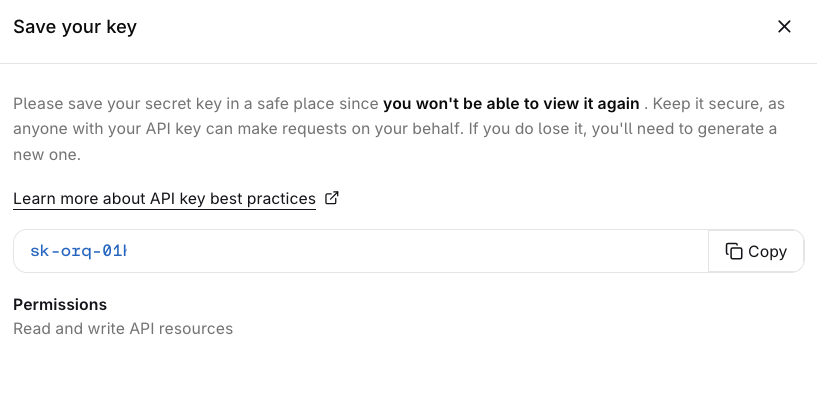
Select Create secret key. A Save your key dialog appears showing the token and its permissions summary.
The Save your key dialog appears once after creation.
Click Copy to copy the token.
The token is only shown once. Store it securely before closing this dialog. It cannot be retrieved afterwards.
To cap a key’s cost, token, or requests-per-minute usage, attach a Budget to it. Budget limits reset on the period you configure.
Store the key
Export the key in the terminal:
export ORQ_API_KEY="your-api-key-here"
$env:ORQ_API_KEY = "your-api-key-here"
Requests send it as Authorization: Bearer $ORQ_API_KEY.
Permissions
Preset
Description
All
Read and write access to all API resources
Read only
Read access to all API resources
Restricted
Custom per-resource access
With Restricted, set the permission for each resource individually: None, Read, or Write.
Write permission automatically includes Read where Read is available for the endpoint.
Restricted permission resources
Resource
None
Read
Write
Agent schedules
✓
✓
✓
Agents
✓
✓
✓
Annotations
✓
✓
✓
Chunking
✓
✓
✓
Datasets
✓
✓
✓
Deployments
✓
✓
✓
Evaluators
✓
✓
✓
External agents
✓
✓
✓
Feedback
✓
✓
✓
Files
✓
✓
✓
Guardrail rules
✓
✓
✓
Human evaluations
✓
✓
✓
Identities
✓
✓
✓
Knowledge bases
✓
✓
✓
Memory stores
✓
✓
✓
Policies
✓
✓
✓
Projects
✓
✓
✓
Prompts
✓
✓
✓
Reporting
✓
✓
Routing rules
✓
✓
✓
Skills
✓
✓
✓
Tools
✓
✓
✓
Gateway
Chat completions
✓
✓
Embeddings
✓
✓
Images
✓
✓
Models
✓
✓
Moderations
✓
✓
OCR
✓
✓
Rerank
✓
✓
Responses
✓
✓
✓
Speech
✓
✓
Transcriptions
✓
✓
Managing Keys
The API Keys management table showing all keys, their type, status, permissions, and actions.
Select the menu on any key to access the following actions:
Edit: update the name, permissions, or expiration date. The owner type cannot be changed after creation.
Duplicate: opens the creation panel pre-filled with the key’s current settings.
Delete: permanently removes the key. This cannot be undone.
A Revoked status means the key belonged to a user who was removed from the organization or project, or it has been revoked manually. Revocation is permanent.
To rotate a key, or to find where every other kind of secret is stored, see Secrets management.
Was this page helpful?
Assistant
Responses are generated using AI and may contain mistakes.