

Use cases
Guardrail rules are most useful when the same safety or compliance check needs to apply consistently across many requests.Add jailbreak protection to all customer-facing banking traffic
Add jailbreak protection to all customer-facing banking traffic
Runs a jailbreak detection Evaluator on all customer-facing requests at the gateway level, adding an extra security layer across AI Gateway traffic.
Enforce GDPR PII checks across the entire workspace
Enforce GDPR PII checks across the entire workspace
Enforces GDPR compliance by running PII detection on all matching requests workspace-wide from a single rule.
Validate customer detail access for the sales team
Validate customer detail access for the sales team
Validates customer detail access for the sales team by calling an external Evaluator on every matching request before it reaches the model.
Monitor tone of voice across all company traffic
Monitor tone of voice across all company traffic
Applies a tone of voice Evaluator at the gateway level so every response is checked against the company’s tone guidelines.
Apply EU AI Act compliance checks to EU-routed requests
Apply EU AI Act compliance checks to EU-routed requests
Runs a compliance Evaluator on EU-routed requests only, scoped using the Rule Builder so the guardrail applies exactly where it is needed without affecting other traffic.
Run safety and quality checks on targeted traffic using metadata
Run safety and quality checks on targeted traffic using metadata
Runs jailbreak detection and response relevance Evaluators at 50% sample rate each, scoped to specific traffic using a metadata condition in the Rule Builder.
Visibility
- Visible to workspace administrators only.
Creating a guardrail rule
From the Guardrail Rules list, click Guardrail Rule. The form opens as a full page with a back control and three sections: General, Guardrails, and Conditions. Leaving the page with unsaved changes asks for confirmation.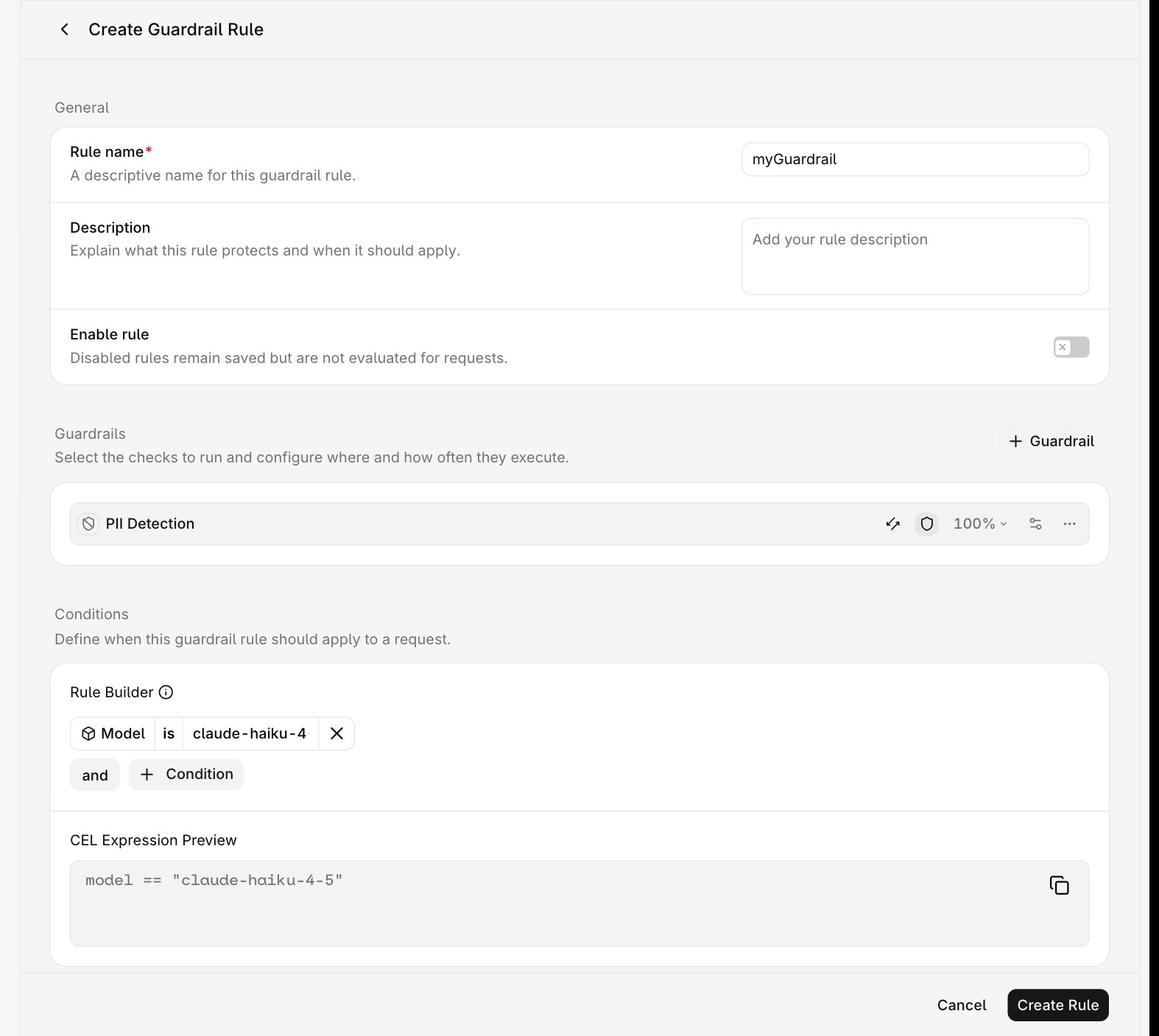
Create Guardrail Rule form in the AI Gateway.
General
Guardrails
Select the checks to run and configure where and how often they execute. Click Guardrail to attach one. The menu groups options into System and Workspace: System guardrails are the pre-built checks covered below; Workspace guardrails are the ones created in the workspace as Guardrails. Each attached guardrail is a row with the controls below.System Guardrails
System Guardrails are the pre-built checks Orq.ai maintains in the Guardrail menu’s System group. Attach one and it runs immediately as a pass/fail check that can block a request; it never rewrites content.
The detectable entity catalog for PII Detection is shared with the PII Redaction plugin, and is region-scoped rather than language-scoped.
GET /v2/pii/capabilities is the live source of truth for the supported regions, base and regional entity types, and the region_entities mapping. A few entity type names changed when the catalog moved to regions; the old keys are rejected at write time.
A rule cannot set a per-guardrail timeout. Guardrails injected by a rule always run with the 60 second default. To bound a Guardrail explicitly, attach it inline on the request instead; see Guardrail timeout.
Conditions
The Conditions section builds the match conditions that determine when the guardrail is triggered. Clicking Condition opens a dropdown with the following condition types:
Click Add group to nest conditions into a logical group. Conditions added directly to the rule are joined with
and, and conditions inside a group are joined with or; click either operator to toggle it. Each condition can be removed with .
The Rule Builder generates a CEL (Common Expression Language) expression shown read-only in the CEL Expression Preview below. The guardrail is only triggered when the expression evaluates to true.