

Connecting a provider key
- Go to BYOK in the AI Gateway sidebar.
- Find the provider and click Configure. The search field filters providers by name, and the Status filter switches the list between All, Connected, and Not Connected.
- In the provider panel, select Setup your own API key, then set a Name and paste the API key.
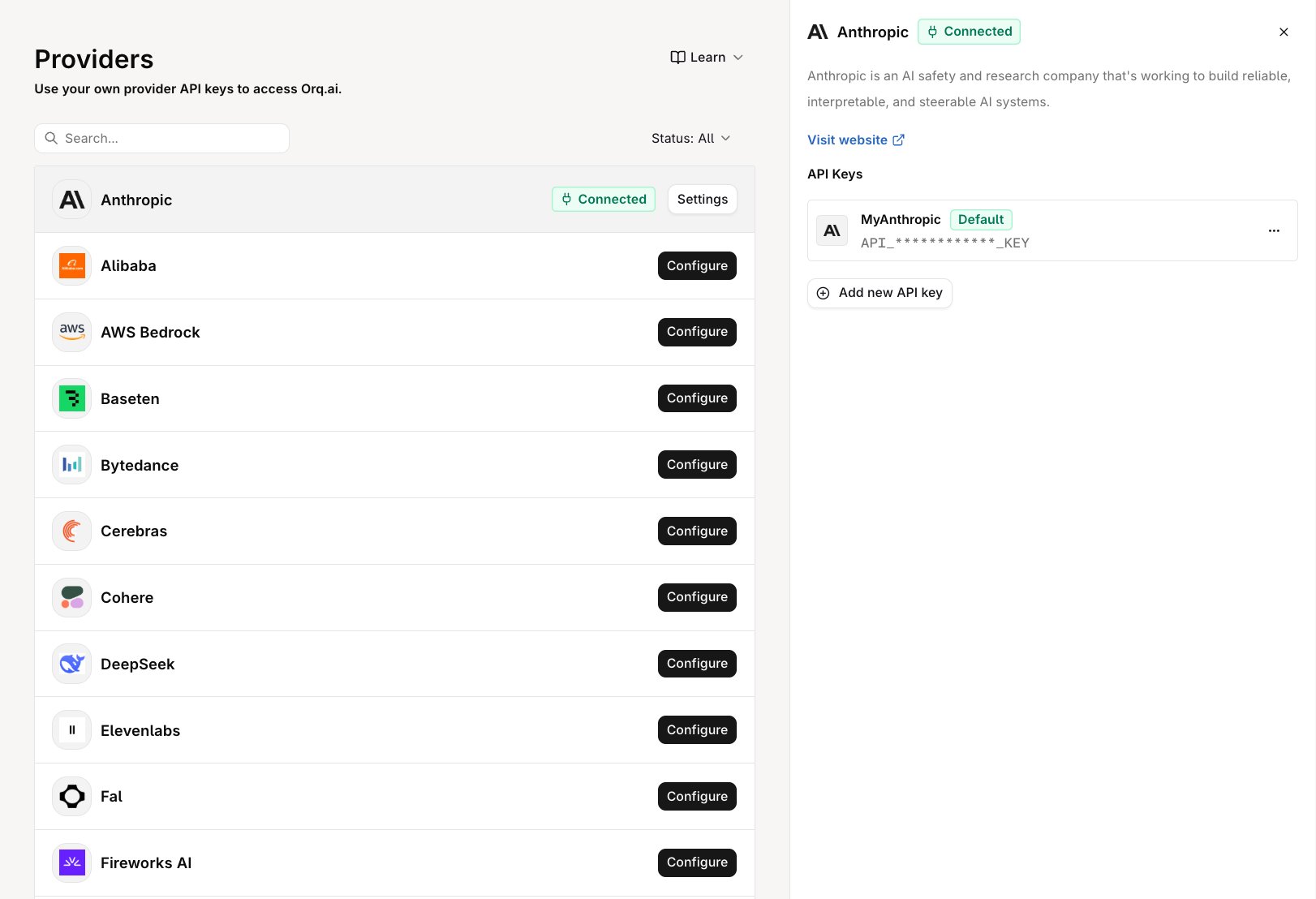
The Providers page showing a connected provider and its API keys.
Browse all supported providers
View the full list of providers available in the AI Gateway, including OpenAI, Anthropic, Google, AWS Bedrock, Azure, and more.
Managing API keys
The provider panel shows the provider’s description, a Visit website link, and the API Keys list for that provider. Each key row shows the key’s name, its masked value, and a Default badge on the workspace’s default key for the provider. The row menu holds the key’s actions:
Add another key with Add new API key in the same panel.
How the default key is chosen
Requests to a provider’s models authenticate with the provider’s default key, or the first key added when none is marked default. Switching keys means promoting another one rather than editing the current one. Promote a key at any time with Set as Default on its row menu; the badge moves to the promoted key.Multiple keys per provider
Multiple keys per provider support two workflows:- Key rotation: add the replacement key alongside the active one, then promote it with Set as Default when the old key is revoked or exhausted.
- Environment separation: keys belong to a single workspace, so a workspace serving a non-production environment holds its own provider credentials.
Why use your own keys
For production workloads, BYOK provides:- Rate limit ownership: provider rate limits apply to the organization’s account, not a shared pool
- Direct billing: spend is billed by the provider directly; configure limits and alerts independently
- Data residency: requests go from the AI Gateway to the provider account with no shared credential layer